Online booking
Online booking for home service businesses
Customers pick a time that is actually free, from your business hours and what is already on the schedule. The booking lands on your calendar as a job with its visit, and nobody has to call back to confirm.
14-day free trial, no card · listing and leads free forever
Why pros use it
Times that are really free
The times a customer sees come from your hours, each person’s own hours and the schedule you already have, with your travel buffer taken off. There is no second calendar to keep in step.
A booking is a job, not a note
When someone books, Fixerlane creates the client, the property, the job and the visit straight away, and emails the customer a confirmation. You open the schedule and it is there.
Your rules, not theirs
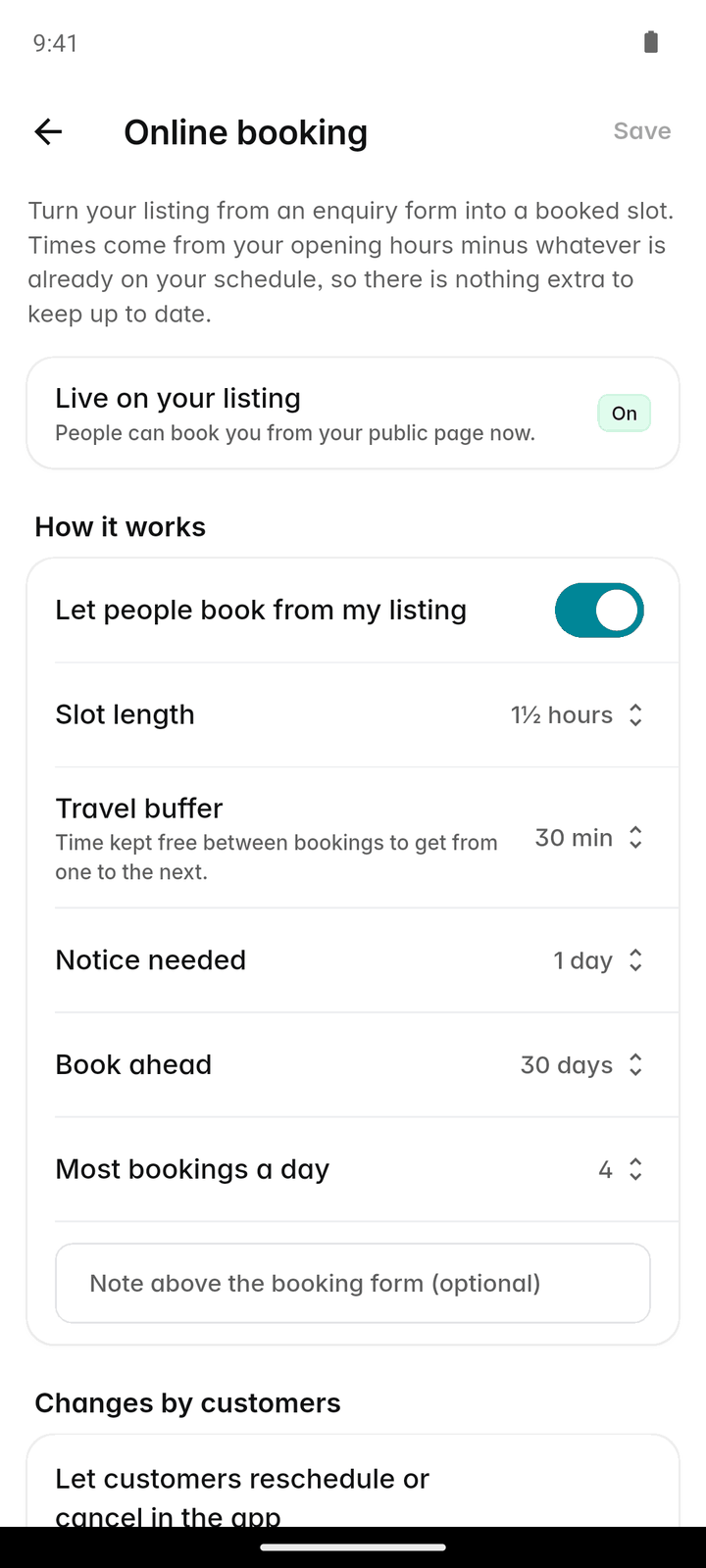
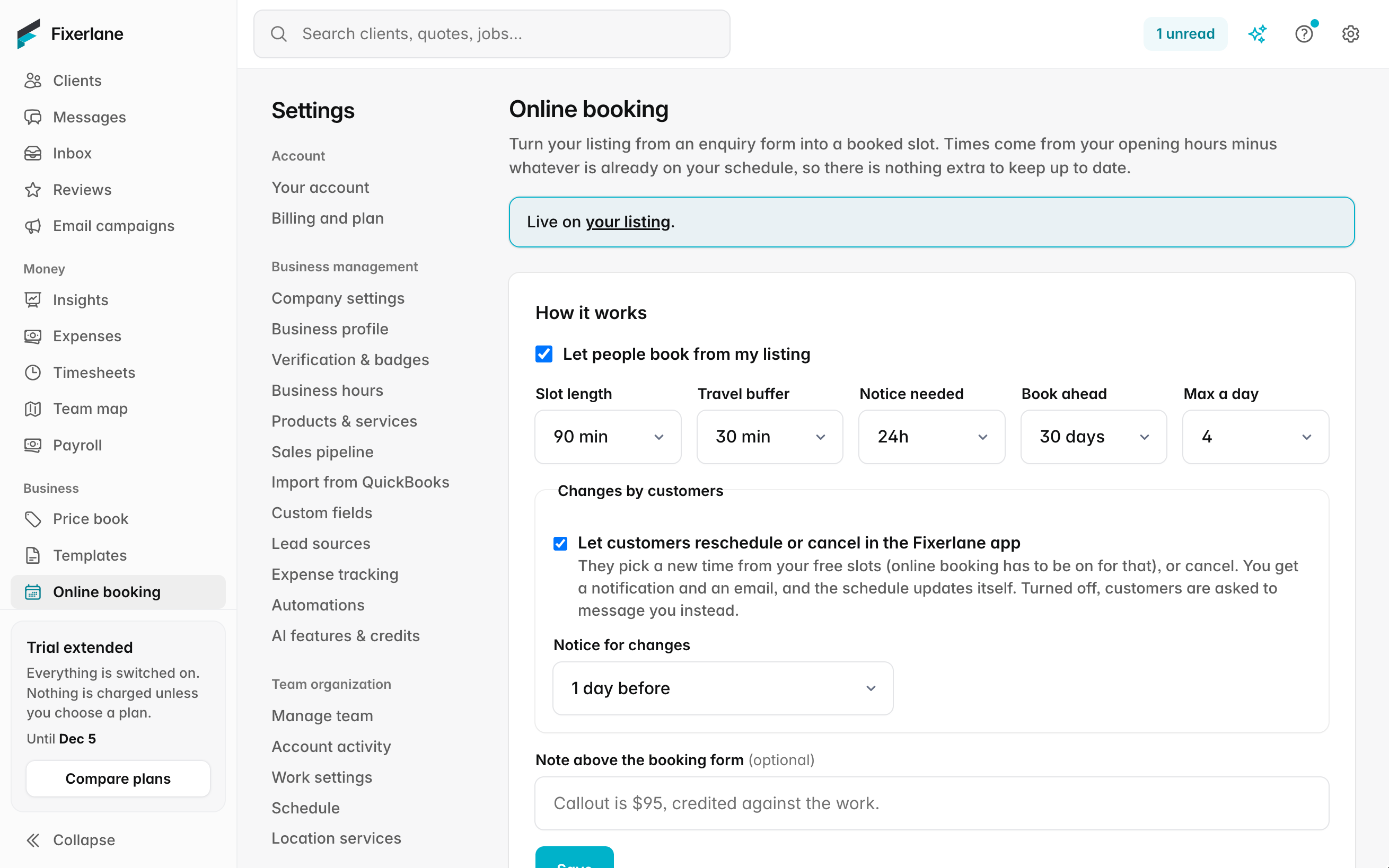
You choose what can be booked, how long each service takes, how much notice you need, how far ahead people can book and how many bookings you take in a day.
How it works
Turn it on
Go to More → Online booking and turn on "Let people book from my listing". It is the same setting on the web, under Settings → Online booking.
Say what can be booked
Add each service with how long it takes and a price. Leave the price blank and the customer sees "Quoted" instead, for work you price after a look.
Set the limits
Pick the slot length, the travel buffer between jobs, the notice you need, how far ahead people can book and the most bookings in a day. Choose whether customers can reschedule or cancel themselves, and how much notice they must give.
Customers book
From your listing, a customer picks a service and a time. Nothing is charged when they book. They get a confirmation by email, and the visit appears on your schedule.
You run the visit
The booked visit works like any other: assign it to a person or a crew, tap "On my way" when you leave, start it on arrival and complete it at the end. Invoice it from the job when the work is done.
In more detail
How the times are worked out
Fixerlane starts from your business hours. For anyone on the team who can be booked online, it uses their own working hours instead. It then takes away whatever is already on the schedule, plus the travel buffer you set, and offers what is left in slots of the length you chose. When you move a visit or add a job, the free times change with it, because they are read from the same schedule. The notice you need and the most bookings in a day are applied on top, so a quiet Monday does not fill with ten jobs because the calendar happened to be empty.
Only in the places you go
Service areas are ZIP codes or a number of miles from your base. Turn on "Only take bookings in my areas" and an address outside them is turned away, with the message you wrote for people out of range. With no areas set, you are treated as covering everywhere for bookings, so it is worth setting them before you switch booking on.
Busy in Google Calendar, not bookable
If you connect Google Calendar on the web, each person’s busy times there are read so online booking does not offer them. Only the start and end of busy periods are read, never the titles or details of your events. The dentist appointment you put in Google stays out of your booking page without being copied into Fixerlane.
Changes and cancellations
If you allow it, customers can reschedule or cancel a booking themselves, within the notice you set. When you change a visit’s time yourself, you can choose to email the customer about it. Either way the schedule is the single record of what is booked.
What it costs
Included in every plan: Fixerlane $19.99 a month for up to 10 people, Fixerlane Team $39.99 for up to 25, Fixerlane Business $69.99 for up to 50. Every plan starts with a 14-day free trial, and no card is needed to start.
See all plans →Not built yet
Listed here rather than discovered after you sign up:
- Taking a payment or deposit at the moment of booking: nothing is charged when a customer books
- Text message confirmations: confirmations go by email
Common questions
- Where do customers book?
- From your Fixerlane listing, once online booking is on. To take bookings on your own website as well, see the website booking widget, which puts your booking and request forms on your site.
- Do customers pay when they book?
- No. Nothing is charged at booking. You invoice the work afterwards, or ask for a deposit on a quote for jobs that need one.
- Can someone book a time I am already busy?
- No. Times already on your schedule are taken away, along with the travel buffer you set. If you connect Google Calendar on the web, busy times there are left out too.
- Can different people on my team have different hours?
- Yes. Each person can have their own working hours and you choose whether they can be booked online. Their hours are used for their slots instead of the business hours.
- What if a customer books outside my area?
- Turn on "Only take bookings in my areas" and addresses outside your service areas are turned away, with a message you write for them.
- Can I offer a service without showing a price?
- Yes. Leave the price blank and the customer sees "Quoted". You can then price it on the visit or send a quote.
- How do I know a booking came in?
- It appears on your schedule as a job with its visit, and the customer and property are created in your clients. You can also set an automation to tell you the moment a request arrives.
- Can a customer cancel without calling me?
- If you allow it. You choose whether customers can reschedule or cancel themselves, and how much notice they must give.
Works well with
Website widget
Copy a short snippet into your website and visitors can send a request, book a time or start a chat without leaving your site. What they send arrives in Fixerlane, next to every other lead.
Scheduling
Jobs, visits and arrival windows laid out by day and by person, so you can see the week at a glance and move it around without a phone call to every customer.
Lead inbox
Every enquiry lands in one list, with what the customer needs, where they are and how to answer them. Receiving leads and replying to them is free, with or without a plan.
Calendar sync
Your visits in the calendar you already check, and your personal appointments kept out of the slots customers can book.
The same tools in the Fixerlane app
Fixerlane runs in the browser and on Android and iPhone, with the same tools in each. The app keeps your day on the phone, so it keeps working without signal.


Try it on your own work
Start the 14-day trial with no card, or claim your free listing first and add the tools later.
All features →