Scheduling
Scheduling software for home service teams
Jobs, visits and arrival windows laid out by day and by person, so you can see the week at a glance and move it around without a phone call to every customer.
14-day free trial, no card · listing and leads free forever
Why pros use it
A week you can actually read
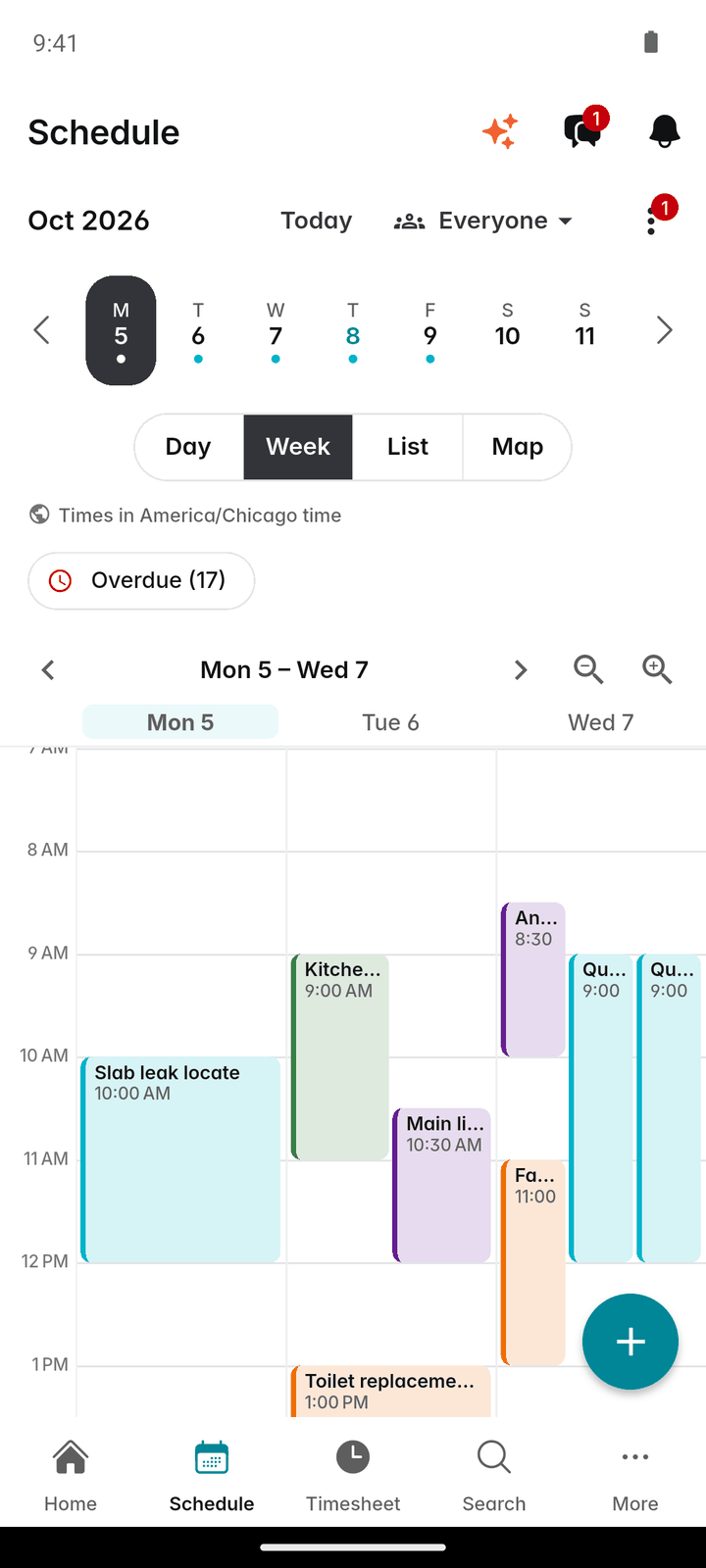
Visits grouped by day and by person, not stacked in a list. You see who is where and what is still unscheduled.
Moving a visit takes a second
Press, hold and drag a visit to a new time, with Undo straight after. It works without signal and does not email the customer unless you choose to.
The crew knows where to go
Every visit carries the property, the instructions and the checklist, and the next stop on Home has a "Go" button for directions.
How it works
Book the visit
On the job, choose "Schedule a visit": the date, the time in your business timezone, how long it takes, and who does it: anyone, one person or a whole crew.
See the week
The Schedule tab has Day, Week, List and Map views. Pick whose visits: Mine, Everyone, one person or one crew.
Move what changes
Drag a visit to a new time in Week view, or open it and tap "Reschedule or edit". When you change a time you can choose to email the customer about it.
Run the day
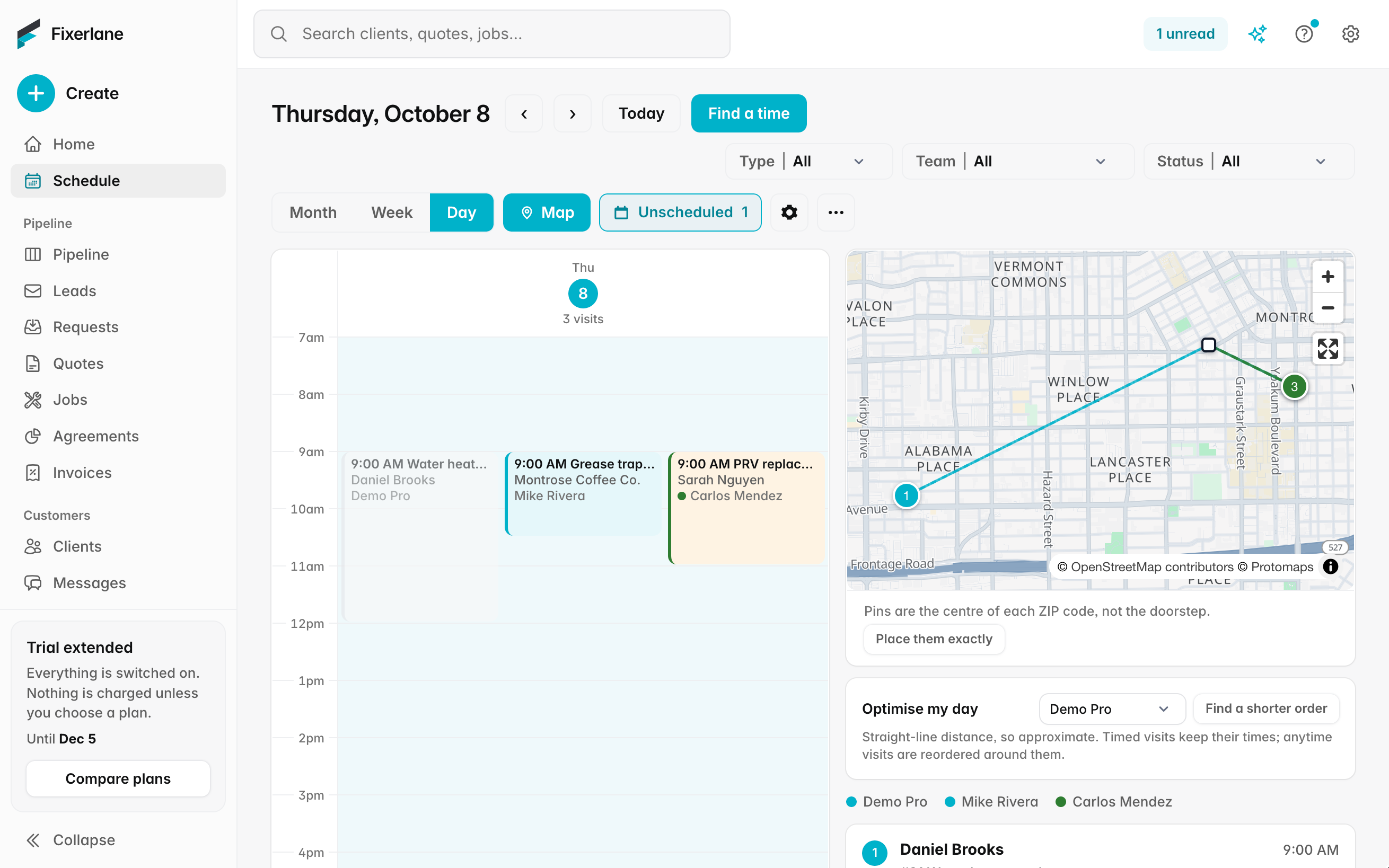
Open Map for the day’s stops as numbered pins, reorder them, or tap "Optimise my day" for a suggested order. Directions open in Google or Apple Maps.
Tell them you are coming
Tap "On my way" and pick when you will arrive. The customer is emailed that you are on your way.
In more detail
Visits, not just jobs
A job can have many visits. A recurring job is one record with a visit for each week or month, so moving one Tuesday does not move every Tuesday. Booking the first visit takes a job out of Unscheduled by itself, and the ⋮ menu lists the jobs still waiting for a visit, each with a Schedule button. Tasks and events sit on the same calendar, so the dentist appointment does not get double-booked.
Arrival windows and "On my way"
Tell a customer "between 9 and 11" instead of promising 9:00 sharp. On the day, "On my way" emails them that you are heading over and roughly when you will arrive, if they have an email and that email is switched on. If the tap reaches Fixerlane more than 45 minutes late, for example after being offline, it is not sent, so nobody gets a stale message.
The day on a map
Map view shows the day’s stops as numbered pins from your business address. "Reorder stops" lets you put them in the order you will drive, and "Optimise my day" suggests one: visits with a set time keep it, and the others are fitted around them. It measures straight-line distance, so treat it as a good guess. Only the order changes, not the times, and you can Undo.
Teams, crews and timezones
Assign a visit to one person or a whole crew in one go. Each person can have their own working hours, which online booking respects. All times are in your business timezone, and if your phone is somewhere else the schedule says so. Week view shows 3 days on a phone and 7 on a tablet. The crew sees their own visits on their phone, with the address, the instructions and the checklist, and starting a visit switches their time clock to it, so the hours land on the right job without anyone filling in a timesheet at the end of the week.
What it costs
Included in every plan: Fixerlane $19.99 a month for up to 10 people, Fixerlane Team $39.99 for up to 25, Fixerlane Business $69.99 for up to 50. Every plan starts with a 14-day free trial, and no card is needed to start.
See all plans →Not built yet
Listed here rather than discovered after you sign up:
- Turn-by-turn road routes inside Fixerlane: "Optimise my day" uses straight-line distance, and directions open in Google or Apple Maps
Common questions
- Can I reschedule without signal?
- Yes. Dragging a visit works offline and syncs when you reconnect. Dragging does not email the customer; changing a time from the visit lets you choose to.
- Does Fixerlane text my customers when I am on my way?
- No. Fixerlane does not send text messages. "On my way" goes by email. If you want to text a customer, the Text button opens your own phone’s Messages app.
- Can I see only my own visits?
- Yes. "Mine" shows your visits and anything not yet assigned. "Everyone" shows the whole team, or pick one person or crew.
- How does route optimisation work?
- "Optimise my day" on the Map view suggests an order using straight-line distance. Visits with a set time keep it. Stops pinned only to a ZIP code or city are left out until you move their pins.
- Can I schedule recurring work?
- Yes. A job can repeat weekly, every 2 weeks, monthly, or on your own schedule, and Fixerlane books the visits about four months ahead and keeps topping them up.
- Can I see the schedule in Google or Apple Calendar?
- Yes. Subscribe to a private calendar link and your visits show in Google, Apple or any calendar app that takes a link. It is read-only and never shows prices.
- What views are there?
- Day lists the day’s stops, tasks and assessments; Week shows a grid; List shows the next 14 days; Map shows the day’s stops as numbered pins. The web console also has a month view.
- What happens when a customer books online?
- If you take online bookings, the booking creates the client, the property, a job and the visit straight away, and it appears on the schedule like any other visit. Customers only see times inside your hours, minus what is already booked and your travel buffer.
Works well with
Service agreements
Set the visits once and Fixerlane keeps booking them. Set the price once and it bills the client every month, quarter or year, by emailed invoice or their saved card.
Team and crews
Add the people who work for you, decide what each of them can see and do, and put them into crews you can send to a job in one go. Plans are priced by team size, not per user.
Calendar sync
Your visits in the calendar you already check, and your personal appointments kept out of the slots customers can book.
Mobile app
Everything the web console does is in the app, and the app keeps working in basements, crawl spaces and dead zones. Changes wait on the phone and send themselves when signal comes back.
The same tools in the Fixerlane app
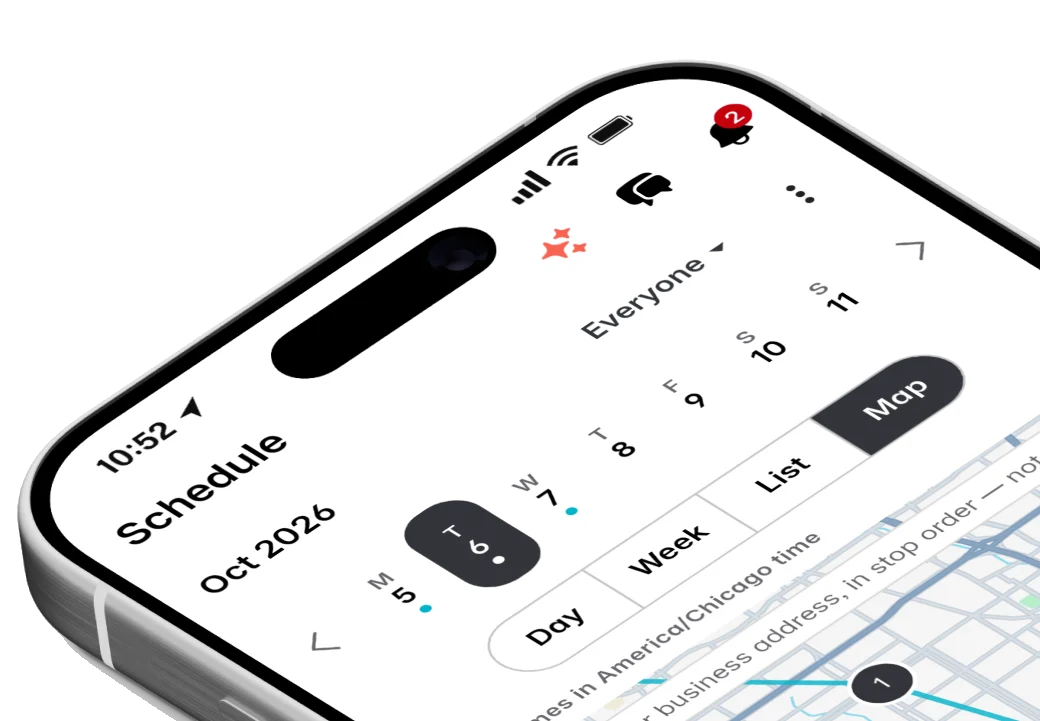
Fixerlane runs in the browser and on Android and iPhone, with the same tools in each. The app keeps your day on the phone, so it keeps working without signal.


Try it on your own work
Start the 14-day trial with no card, or claim your free listing first and add the tools later.
All features →