Team and crews
Crew management for home service teams
Add the people who work for you, decide what each of them can see and do, and put them into crews you can send to a job in one go. Plans are priced by team size, not per user.
14-day free trial, no card · listing and leads free forever
Why pros use it
Each person sees their own work
A crew member opens the app to their own visits, with the address, the instructions and the checklist. They do not see your prices, your payroll or the rest of the business.
Send a crew, not five invitations
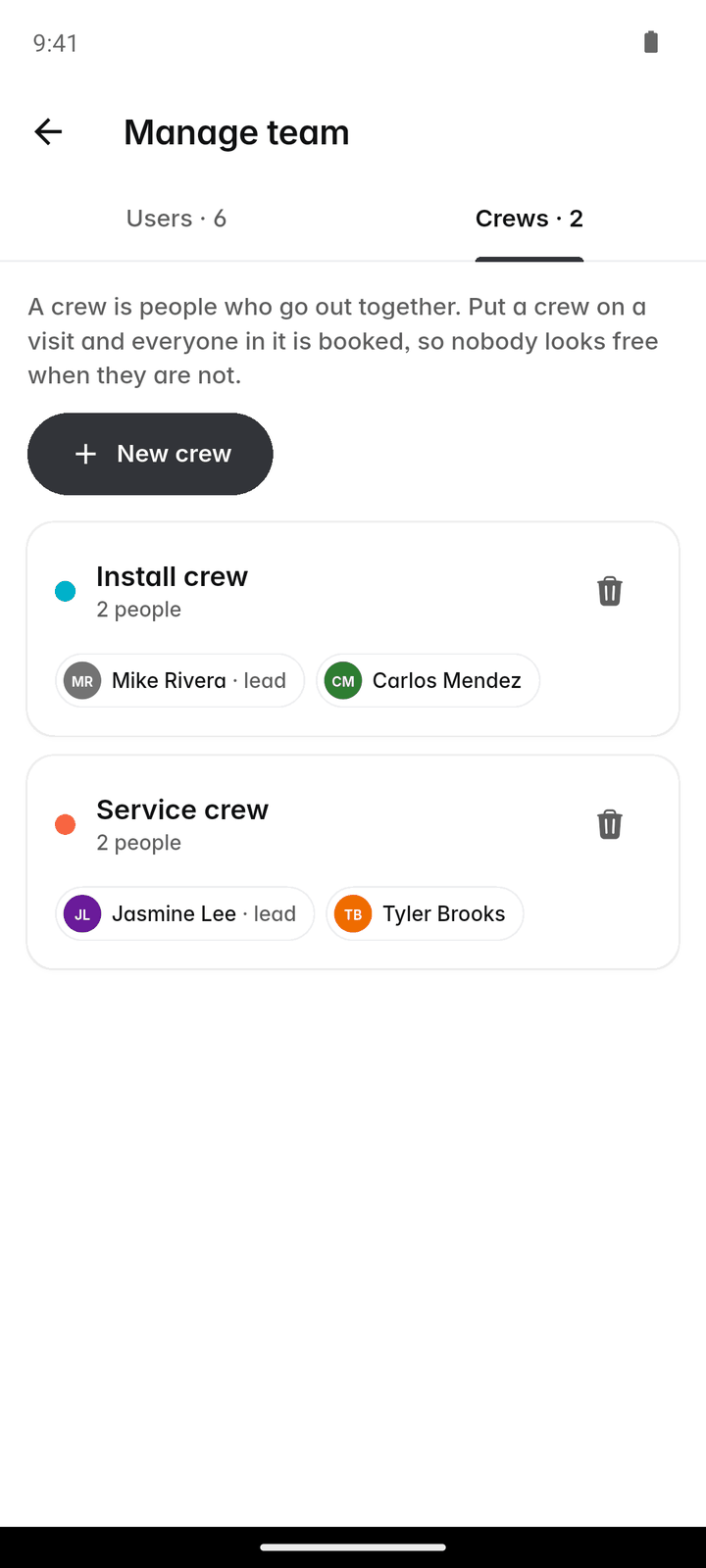
Group people into a named crew with a colour and a lead. Assign the whole crew to a visit at once, and the visit lands on every member’s schedule.
Priced by team size
Up to 10 people on Fixerlane, 25 on Fixerlane Team, 50 on Fixerlane Business. Adding the eighth person does not change your bill, and seasonal helpers on the schedule by name cost nothing at all.
How it works
Add someone
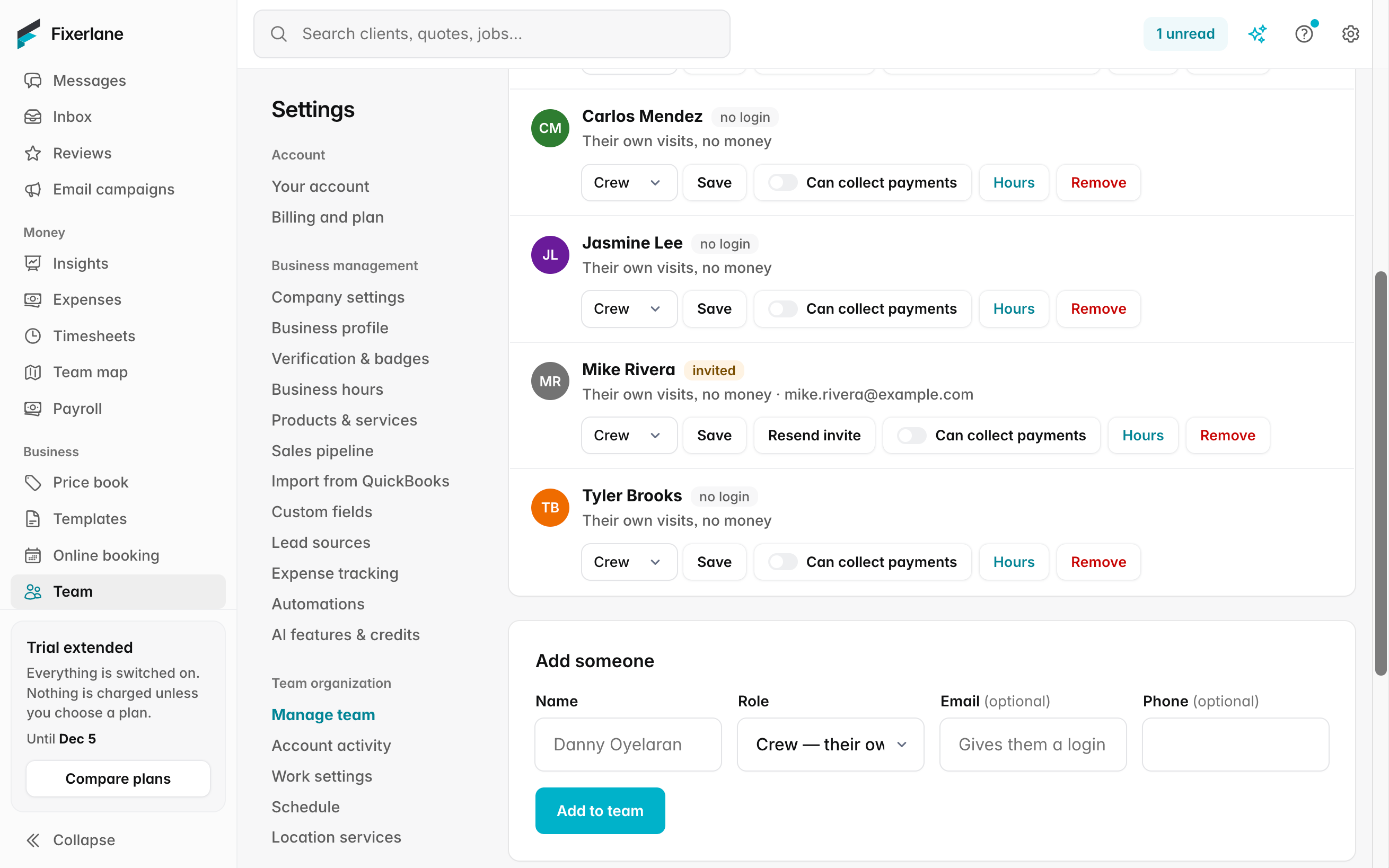
More → Team → "Add someone". Enter their name and pick a role: Crew, Office or Admin. Owners and admins can add people.
Invite them, or keep them on the schedule only
Add an email and Fixerlane emails them an invitation to sign in. Leave the email blank to put them on the schedule by name only, for a helper who never needs the app.
Group them into crews
On the Crews tab, tap "New crew", name it, give it a colour, choose who is in it and who leads it.
Assign the work
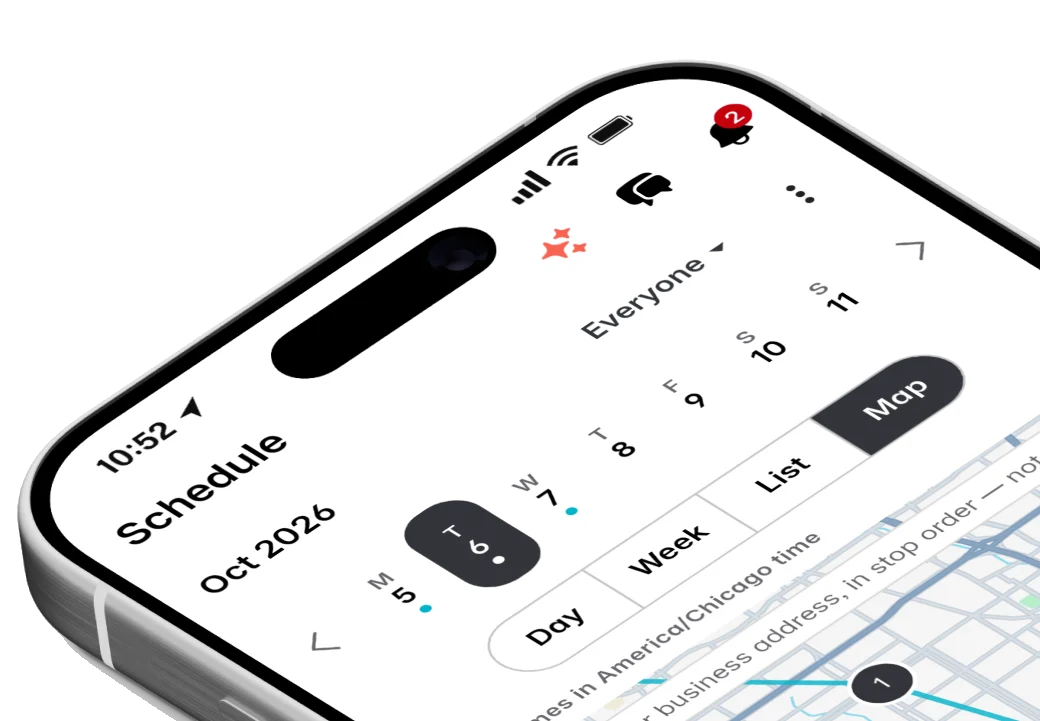
When you book a visit, choose who does it: anyone, one person or a whole crew. The schedule can then show everyone, one person or one crew at a time.
Keep it current
Tap a member to change their role or hours as the season changes, or remove them when they leave. Removing someone frees their seat straight away and ends their access to your business.
In more detail
Four roles, plainly divided
The owner can do everything, including billing. An admin can do everything except billing. Office staff handle the office work of clients, quotes, jobs and invoices. Crew see their own visits and no money. Money, the price book and tax, payroll, reports and team changes are for owners and admins. Office and crew see their own time and receipts, never anyone’s pay rate. If an office or crew member takes payment on site, turn on "Can collect payments" for that person alone.
How seats count
A seat is anyone who can sign in, you included, plus every invitation that has not been accepted yet. People on the schedule by name only take no seat. At your plan’s limit nobody is signed out or locked out: you just cannot invite someone new until you move up a plan or free a seat. Removing someone or cancelling an invitation frees the seat at once.
Working hours for each person
Each member can have their own hours: business hours, not working, or set hours for each day. You also choose whether they can be booked online. Online booking then only offers times when someone who can be booked is free, so a part-timer’s day off is never sold to a customer.
Invitations, devices and leaving
An invitation works for 7 days, and you can resend it from the member’s menu. They can also paste the link or code under "Have a team invite?" on the sign-in screen. Tap a member to change their role, set their hours, see which devices are signed in, or remove them. Someone who leaves keeps their name on past visits and timesheets, so your records stay whole.
What it costs
Included in every plan: Fixerlane $19.99 a month for up to 10 people, Fixerlane Team $39.99 for up to 25, Fixerlane Business $69.99 for up to 50. Every plan starts with a 14-day free trial, and no card is needed to start.
See all plans →Not built yet
Listed here rather than discovered after you sign up:
- Custom roles beyond Owner, Admin, Office and Crew
- More than 50 people on a self-serve plan: contact support and a plan is set up for your team
Common questions
- Do I pay per user?
- No. Plans are sized by team: Fixerlane covers up to 10 people for $19.99 a month, Fixerlane Team up to 25 for $39.99, and Fixerlane Business up to 50 for $69.99. Every plan has every feature.
- Who counts as a person on my plan?
- Anyone who can sign in, the owner included, plus open invitations. Crew you only put on the schedule by name take no seat, because they never sign in.
- What happens when I reach the limit?
- Nobody is signed out. You cannot invite anyone new until you move up a plan or free a seat by removing someone or cancelling an invitation.
- Can a crew member see what I charge?
- No. Crew see their own visits, instructions and checklists, not prices, invoices or payroll. If they take payment on site, you can turn on "Can collect payments" for them.
- Can I assign one visit to two crews?
- A visit goes to anyone, one person or one crew. If a job needs two crews, book a visit for each, or make a crew that holds everyone who goes.
- What if someone loses their phone?
- Open the member under Team to see the devices they are signed in on, and remove them from the team if you need to cut access straight away.
- Does my office manager need to be an admin?
- Not necessarily. Office covers clients, quotes, jobs and invoices. Make them an admin only if they also need the price book, payroll, reports and team changes.
- Can a crew member see the whole schedule?
- Crew work from their own visits. Owners, admins and office staff can switch the schedule between "Mine", "Everyone", one person or one crew, which is how the office plans the week.
Works well with
Scheduling
Jobs, visits and arrival windows laid out by day and by person, so you can see the week at a glance and move it around without a phone call to every customer.
Timesheets and payroll
The team clocks in to what they are doing, you approve the week, and Fixerlane hands you a payroll file with regular and overtime hours worked out. You pay people the way you already do.
GPS tracking
Turn it on and you can see where your team is during working hours and when they reached each visit. It records only while someone is clocked in, and only owners and admins can see it.
Mobile app
Everything the web console does is in the app, and the app keeps working in basements, crawl spaces and dead zones. Changes wait on the phone and send themselves when signal comes back.
The same tools in the Fixerlane app
Fixerlane runs in the browser and on Android and iPhone, with the same tools in each. The app keeps your day on the phone, so it keeps working without signal.


Try it on your own work
Start the 14-day trial with no card, or claim your free listing first and add the tools later.
All features →