Automations and templates
Automated follow-ups and templates for home service pros
Switch on the follow-ups you mean to send but forget: after a quote, when an invoice is due, the day after a job. Write the messages you repeat once, and pick them from then on.
14-day free trial, no card · listing and leads free forever
Why pros use it
Follow-ups that happen
A quote that nobody chases is a quote that goes cold. Turn on a follow-up two or five days after a quote is sent and it goes out whether or not you remember. On a busy week, that is the difference between a client who forgot about you and one who books.
Getting paid without the awkward call
Reminders on the day an invoice is due and three days after, in your words. Each invoice is chased by email at most once automatically, so nobody gets nagged.
Write it once
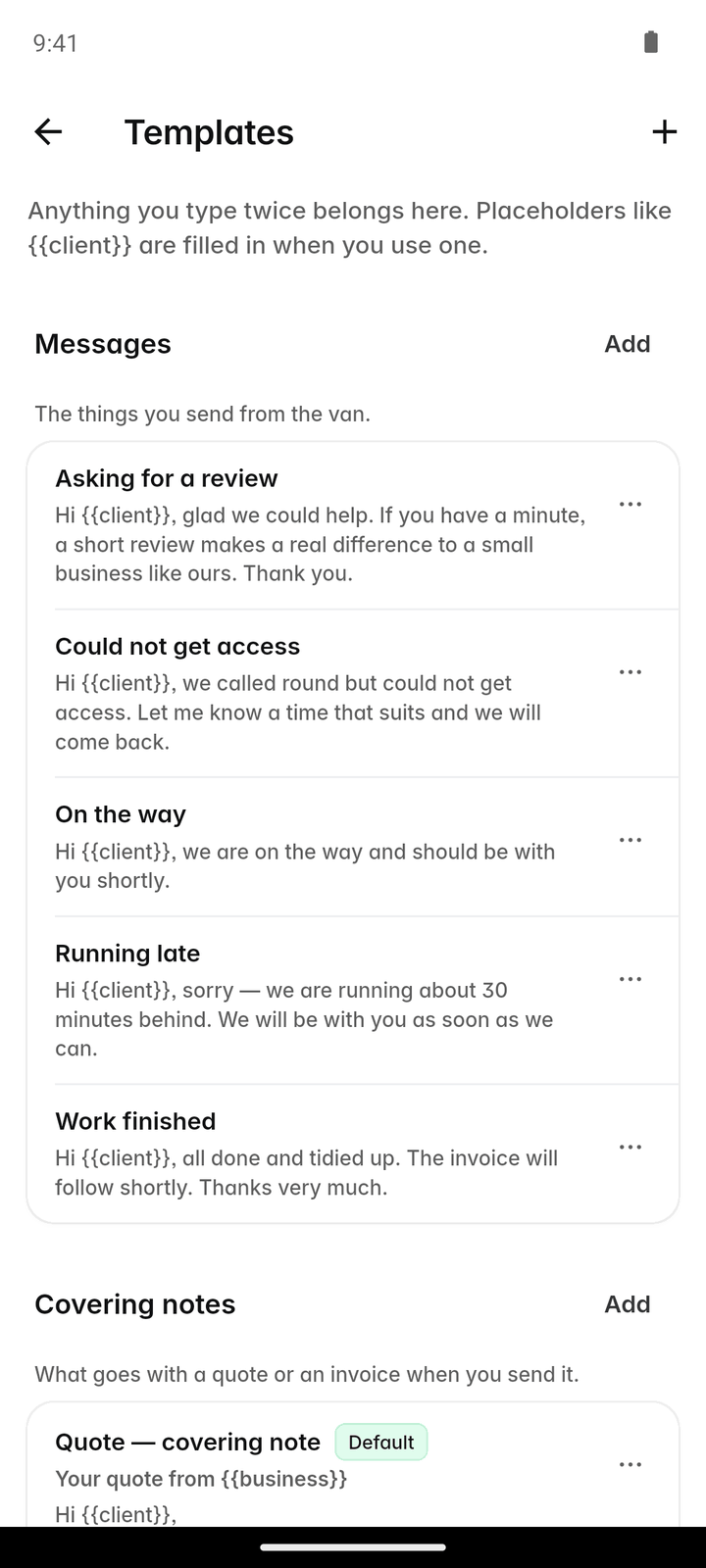
Templates hold the messages, covering notes and terms you repeat, with the client’s name, the total and the link filled in when you use one. Everyone on the team writes the same terms the same way, instead of each person keeping their own version in their notes app.
How it works
Turn on the built-in ones
Settings → Automations lists the common ones, each with a switch: quote follow-ups, invoice reminders, archiving old quotes, request alerts and feedback requests.
Add your own
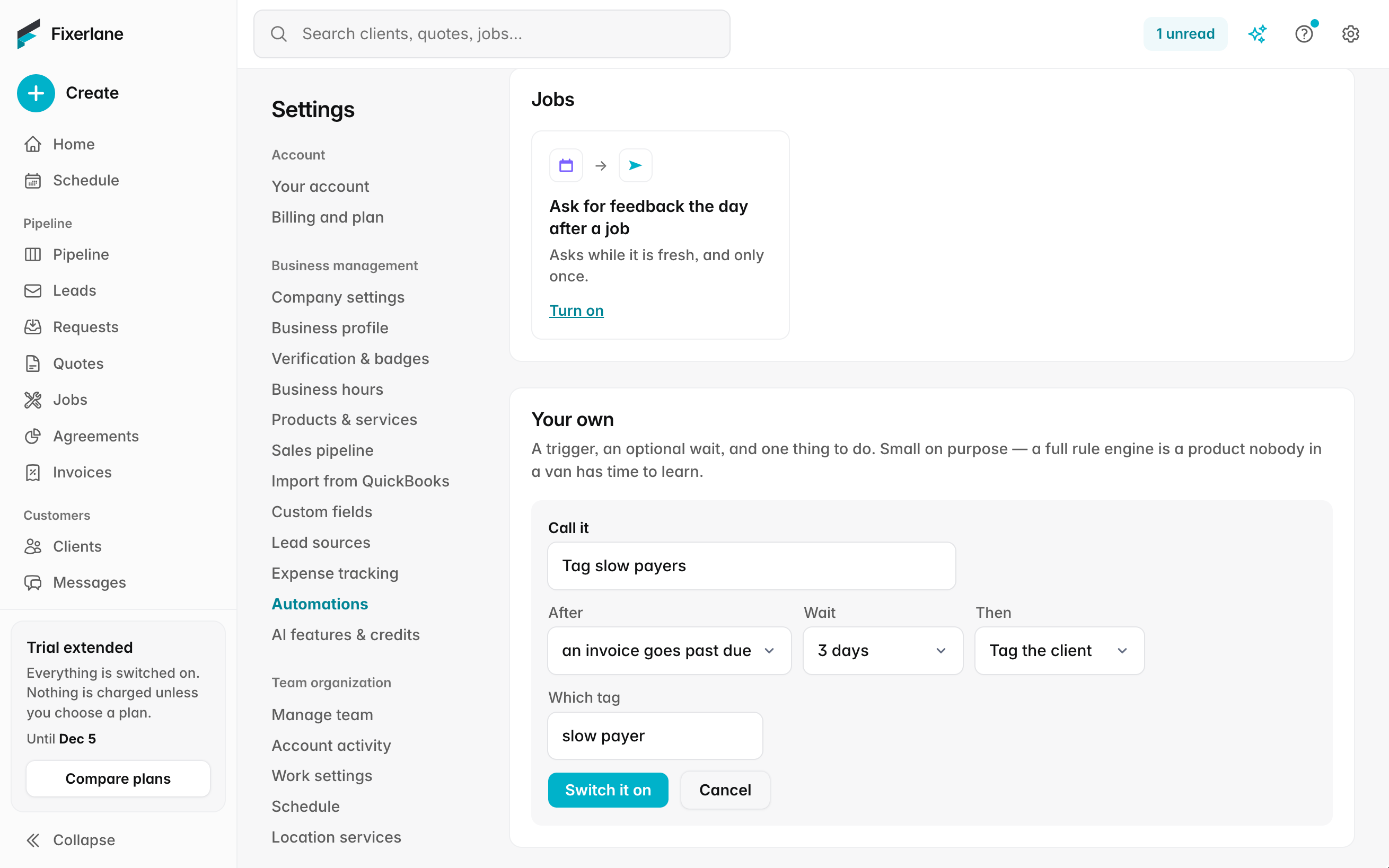
Under "Your own", pick what starts it, how long to wait (straight away or a number of days) and one action. Save, and it runs from then on.
Write your templates
More → Templates has three kinds: messages, covering notes for quotes and invoices, and terms and wording. Make one of a kind the default and it is used automatically.
Use them anywhere
Pick a template when you write a message, a quote or an invoice. The placeholders fill in from the record you are on.
Adjust as you go
Switch any automation off, change its wording, or delete a rule of your own when it stops being useful. Each rule reads as one line, such as "After a job is finished, 1 day, email the client", so it is easy to see what is switched on.
In more detail
The built-in automations
Follow up 2 days after a quote is sent. Follow up 5 days after a quote is sent. Archive quotes after 30 days. Remind on the day an invoice is due. Chase 3 days after an invoice is due. Tell me the moment a request arrives. Ask for feedback the day after a job. Each can be switched on or off on its own, and the wording is yours. Start with the invoice reminders and one quote follow-up; they cover the two moments where money most often slips, and you can add the rest once you have seen how clients respond.
Rules you write yourself
A rule has a trigger, a delay and one action. Triggers: a quote is sent, a quote is approved, a job is finished, an invoice falls due, an invoice goes past due, a request arrives. Actions: tag the client, tell somebody by email, or email the client. "Tag as slow payer three days after an invoice goes past due" is one line. So is "Tell the office the moment a quote is approved", which means the person who books the work hears about it before the client has to call.
Placeholders
Templates fill in {{client}}, {{business}}, {{number}}, {{total}}, {{date}}, {{time}} and {{link}} from the record you are on. Email templates in Inbox have their own merge fields, such as {{client_name}}. Owners and admins can change templates; everyone can use them. Make one template of a kind the default, such as your standard quote terms, and it is filled in on every new document without anyone choosing it.
Everything goes by email
Automated messages to clients go by email, from your own mailbox if you connected one or from Fixerlane on your behalf. Fixerlane does not send text messages, so no automation texts a client. You stay responsible for what your automations send, so read a rule before you switch it on.
What it costs
Included in every plan: Fixerlane $19.99 a month for up to 10 people, Fixerlane Team $39.99 for up to 25, Fixerlane Business $69.99 for up to 50. Every plan starts with a 14-day free trial, and no card is needed to start.
See all plans →Not built yet
Listed here rather than discovered after you sign up:
- Multi-step workflows with branches: each rule is one trigger, one delay and one action
- Automated text messages: automations send email only
- Triggers on a schedule, such as every first Monday of the month
Common questions
- Will automations email my clients without me knowing?
- Only the ones you switch on. Each automation has its own switch, and you write the wording before it sends. Nothing is switched on for you without your say, and you can turn any of them off again at any time.
- How often are late invoices chased?
- Each invoice is chased by email at most once automatically. After that, a personal message usually works better.
- Can an automation tell my office manager something?
- Yes. Use the "Tell somebody" action with their email, for example when a request arrives or a quote is approved.
- Can automations send texts?
- No. Fixerlane does not send text messages. Automations send email, and the Text button on a client opens your own phone when you want to text.
- Who can change templates?
- Owners and admins can create and edit them. Everyone on the team can use them.
- Can I stop old quotes cluttering the list?
- Turn on "Archive quotes after 30 days" and quotes nobody acted on are archived for you.
- Can the AI write my templates?
- Fixerlane AI can draft messages and replies for you to edit and confirm. Templates themselves are written by you.
- Do automations keep running after my trial ends?
- Automations are part of the business tools, so they pause when a trial ends without a plan and start again when you subscribe. Nothing you set up is deleted.
Works well with
Messages and inbox
Message clients from the app or the web, with photos and voice notes. They reply from an email link, no app or account needed, and email from your own mailbox sits next to the client it belongs to.
Invoicing
Raise the invoice from the job you just finished, send it with a payment link, and see what is still owed without opening a spreadsheet.
Quoting
Build the quote on site, send it before you leave the driveway, and know the moment the customer opens it, approves it or asks for a change.
Fixerlane AI
Ask what is on tomorrow, who owes you money or how last month went, by typing or speaking. Have it draft a quote, book a visit or write a reply. It shows you what it will do, and waits for you to confirm.
The same tools in the Fixerlane app
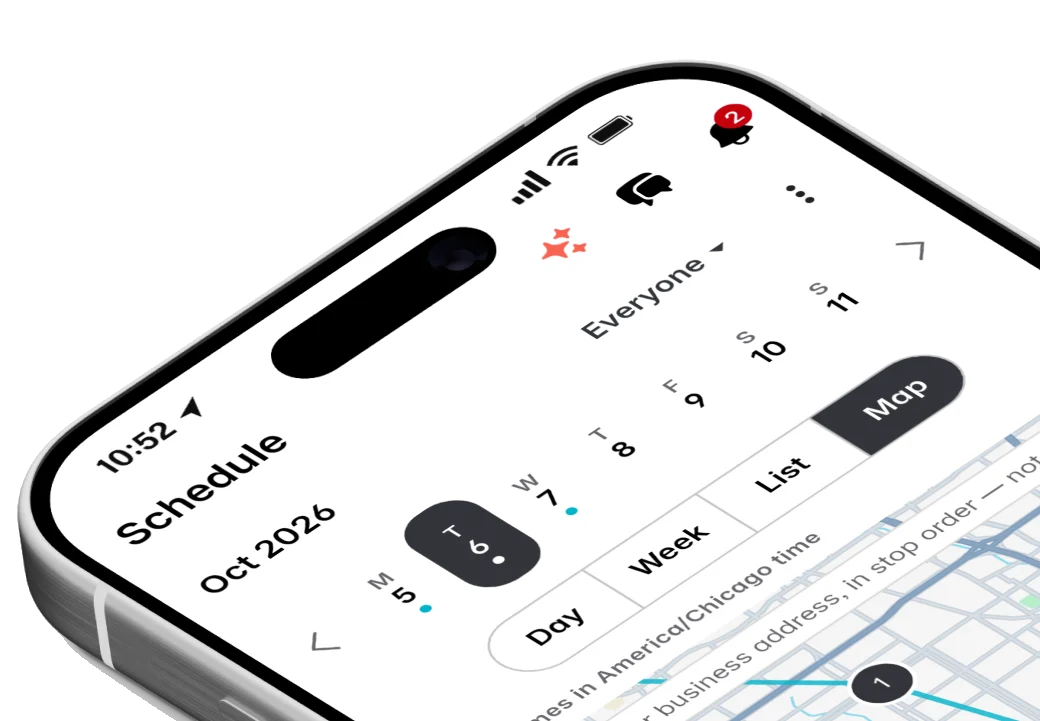
Fixerlane runs in the browser and on Android and iPhone, with the same tools in each. The app keeps your day on the phone, so it keeps working without signal.


Try it on your own work
Start the 14-day trial with no card, or claim your free listing first and add the tools later.
All features →