Quoting
Quoting software for contractors and home service pros
Build the quote on site, send it before you leave the driveway, and know the moment the customer opens it, approves it or asks for a change.
14-day free trial, no card · listing and leads free forever
Why pros use it
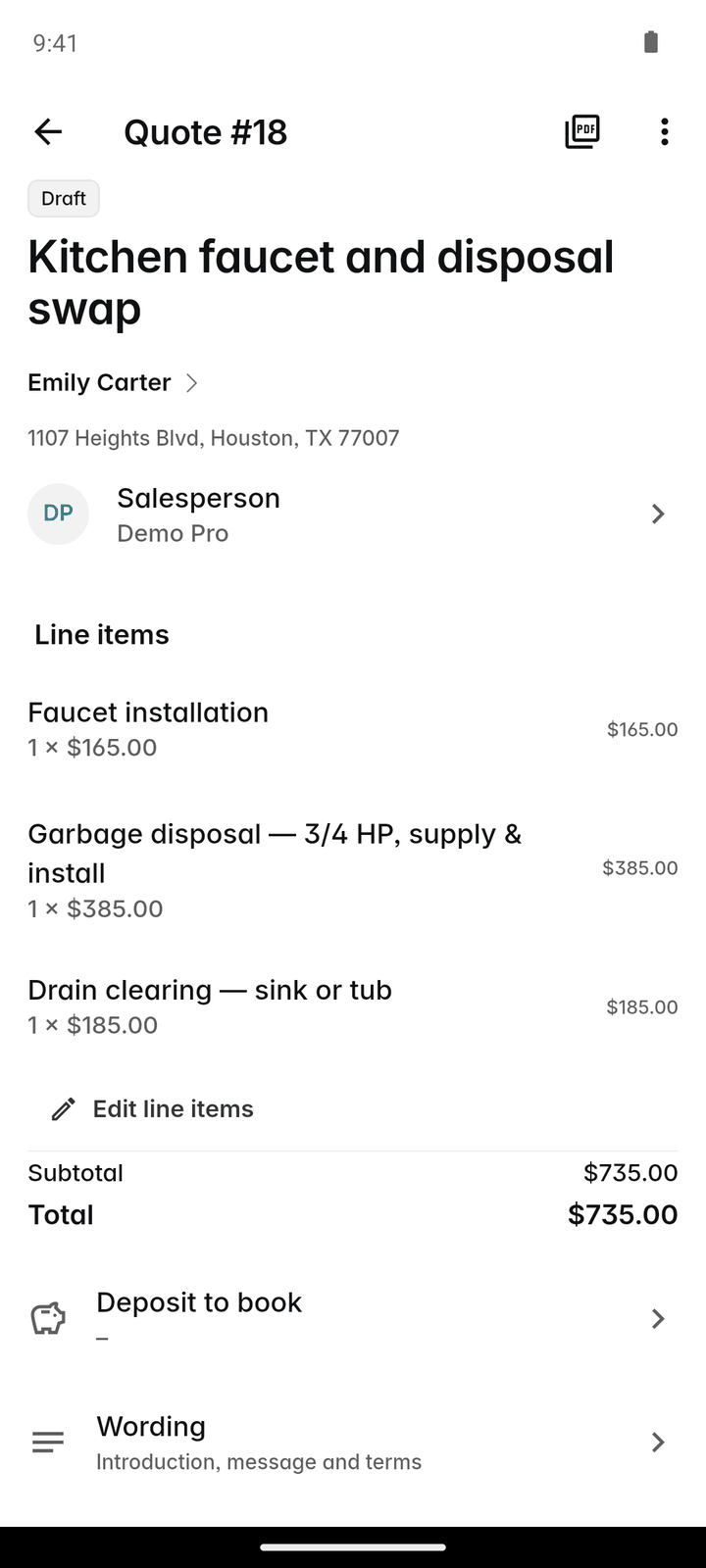
Quote while you are still there
Pick services from your price book, adjust the quantities and send it from your phone. The customer has it in their inbox before you have packed the van.
A yes without the paperwork
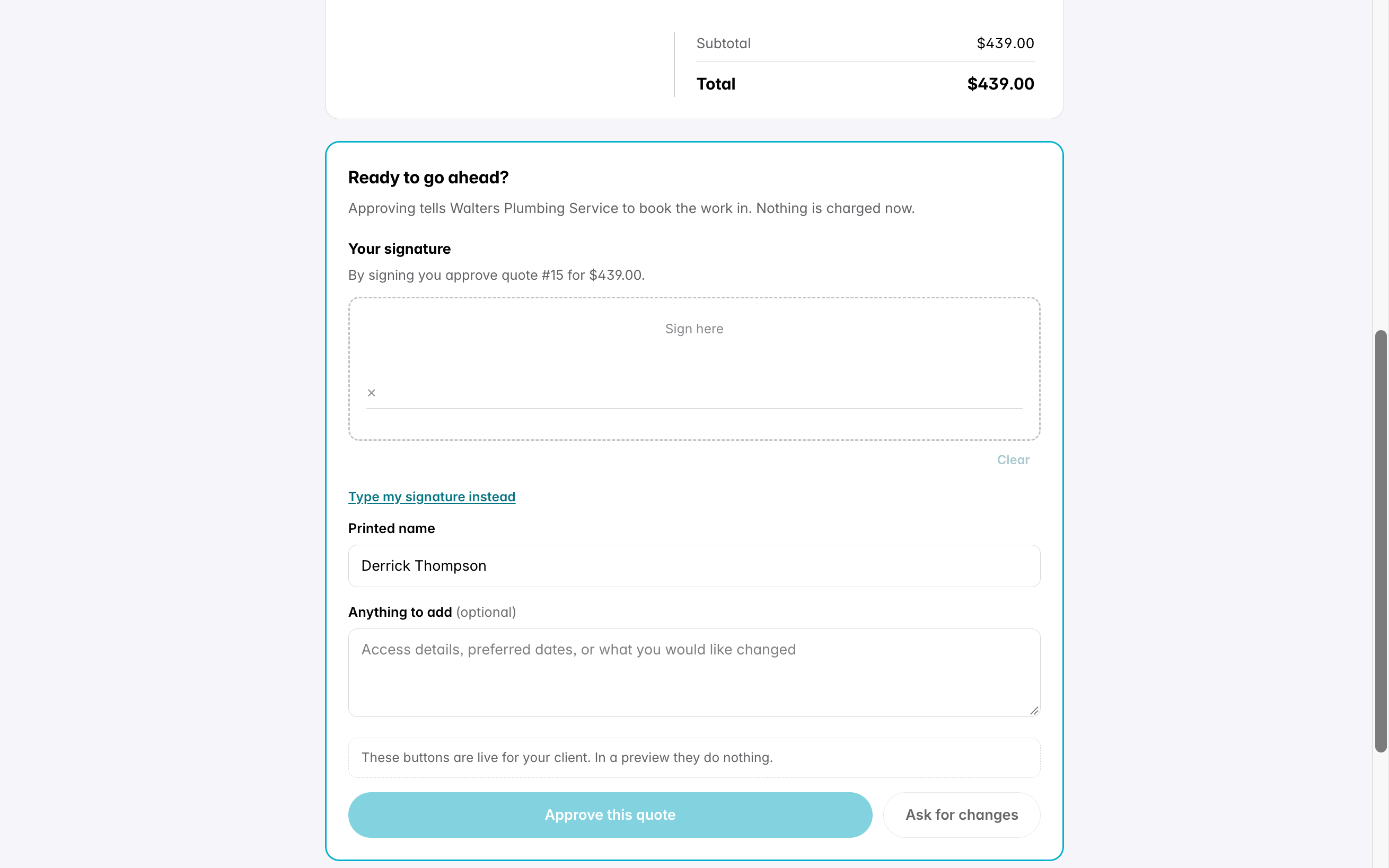
The customer opens a link, reads the quote and approves it, with a signature if you ask for one. They need no account, no password and no app.
A sent quote stays what was sent
Totals and tax are stored on the quote, so changing your prices or tax rates later never changes what a customer already agreed to.
How it works
Start the quote
Tap + → Quote, or "Quote this" on a request so the client and address are already filled in. Give it a title and pick a tax rate, or "No tax".
Add the lines
Add services and materials from your price book, or type a custom line with a description, quantity and unit price. Untick Taxable on lines that carry no tax.
Polish it
Change the introduction, message and terms, ask for a deposit, attach files, or add options and optional extras. The quote stays a draft until you send it.
Send it
Tap Email to send a link and a PDF, or "Share link" to send the link any other way. Email works offline and goes out once you have signal.
Turn the yes into a job
When the customer approves, you are told straight away. Tap "Convert to job & schedule", the lines carry across, and you pick the first visit.
In more detail
Real quantities, exact money
2.5 hours and 1.75 tons are real numbers, so a line is priced the way the work is measured. Every amount is kept in whole cents and totals are worked out to the cent, so a long quote never drifts by a few pennies between the screen, the PDF and the invoice. Your first quote is numbered #1, not a number borrowed from somebody else’s account. When the customer approves, the job, and later the invoice, carry the same lines and the same tax, so the chain from the enquiry to the payment stays traceable.
Your logo, your colour, your words
Every quote goes out as a PDF in your colour with your logo, set once in Settings → Document design with a preview. Write the terms you want on a quote and choose to use them on every future quote. Templates hold the covering notes you send often, with the client’s name and the total filled in for you.
Know where it stands
After you send it, the quote shows "Sent, not opened yet", or when it was opened and how many times. Automations can follow up 2 or 5 days after a quote is sent, and archive quotes nobody answered after 30 days. The quote performance report in Insights shows how many were sent and how many were approved.
Approval, signature and deposit in one link
Settings → Client hub decides whether approving needs a signature. With it on, the customer signs with a finger or a mouse, or types their name, and Fixerlane records who signed, when, and exactly what they agreed to. If you asked for a deposit, they can pay it by card or bank from the same link once you take payments, and it comes off the first invoice automatically.
What it costs
Included in every plan: Fixerlane $19.99 a month for up to 10 people, Fixerlane Team $39.99 for up to 25, Fixerlane Business $69.99 for up to 50. Every plan starts with a 14-day free trial, and no card is needed to start.
See all plans →Not built yet
Listed here rather than discovered after you sign up:
- Aerial or satellite measurements for roofs and lots
- Consumer financing offers on quotes
Common questions
- Does my customer need an account to approve a quote?
- No. They open the link from the email, read the quote and tap "Approve this quote". If you require a signature, they sign on the same page. They can also tap "Ask for changes" if you allow it.
- Can I quote without signal?
- You can build and email a quote with no signal; the email goes out when the phone reconnects. Sharing a link or the PDF needs signal at the time.
- Can the customer sign on my phone instead?
- Yes. Open the quote and tap "Client signs now", type the signer’s name and hand them the phone. If they said yes on the phone, use "Mark approved (they said yes)".
- What happens if I change my prices after sending a quote?
- Nothing changes on the quote you sent. Prices and the tax rate are stored on each quote, so only new quotes use the new figures.
- Can I offer good, better and best?
- Yes. A quote can carry 2 to 5 options, each with its own lines, and you can mark one as Recommended. The customer picks one when approving. Optional extras let them tick add-ons too.
- Do quotes come from my email address?
- If you connect your business mailbox, quotes go out from your own address and replies land in your Fixerlane Inbox. Otherwise Fixerlane sends them for you where it can.
- Can I ask for a deposit?
- Yes. Set "Deposit to book" to a percentage or an amount. The customer can pay it by card or bank from the quote link after approving, once you have connected payments.
- Can my office staff send quotes?
- Yes. Owners, admins and office staff do the office work of clients, quotes, jobs and invoices, so they can build and send quotes. Changing the price book itself is for owners and admins, which keeps the prices everyone quotes from in one pair of hands.
Works well with
Proposals and change orders
Offer a choice instead of a single price, get it signed online or on site, and price the extra work that turns up halfway through without starting a new quote.
Price book
Write down what you charge once, and every quote and invoice after that is a few taps. Your cost stays private, and changing a price never changes a quote you already sent.
Payments
Customers pay from the quote or invoice link, or tap their card on your phone. The money goes into your own Stripe account, and Fixerlane takes nothing from a card payment.
Lead inbox
Every enquiry lands in one list, with what the customer needs, where they are and how to answer them. Receiving leads and replying to them is free, with or without a plan.
The same tools in the Fixerlane app
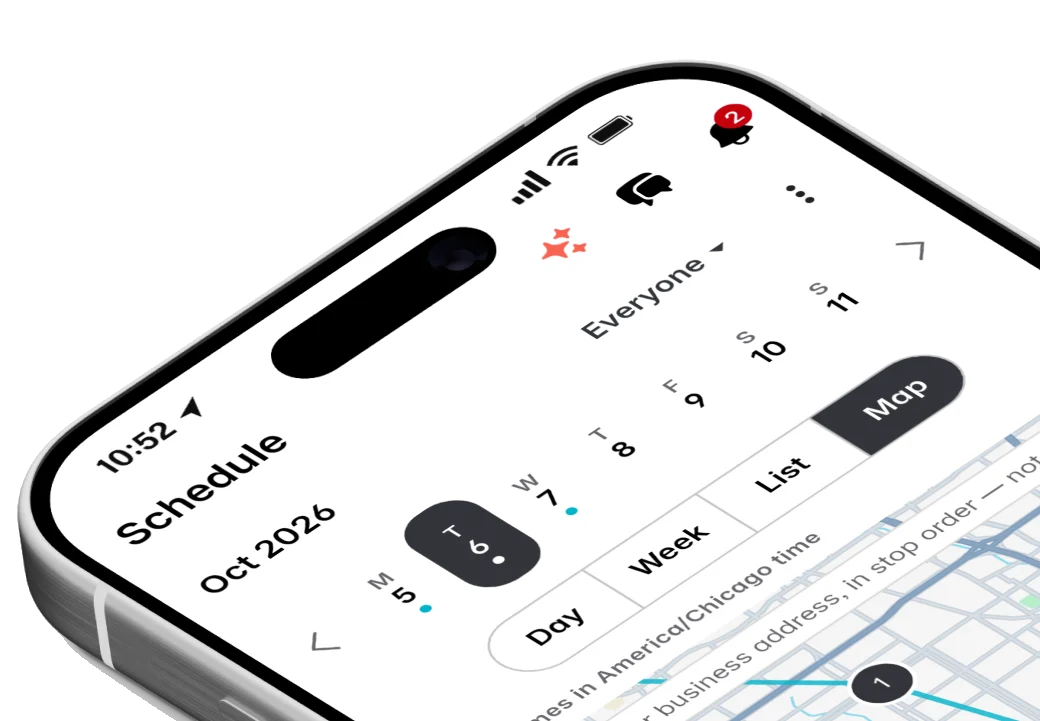
Fixerlane runs in the browser and on Android and iPhone, with the same tools in each. The app keeps your day on the phone, so it keeps working without signal.


Try it on your own work
Start the 14-day trial with no card, or claim your free listing first and add the tools later.
All features →