Proposals and change orders
Proposals, change orders and e-signatures for contractors
Offer a choice instead of a single price, get it signed online or on site, and price the extra work that turns up halfway through without starting a new quote.
14-day free trial, no card · listing and leads free forever
Why pros use it
Customers choose, instead of comparing you
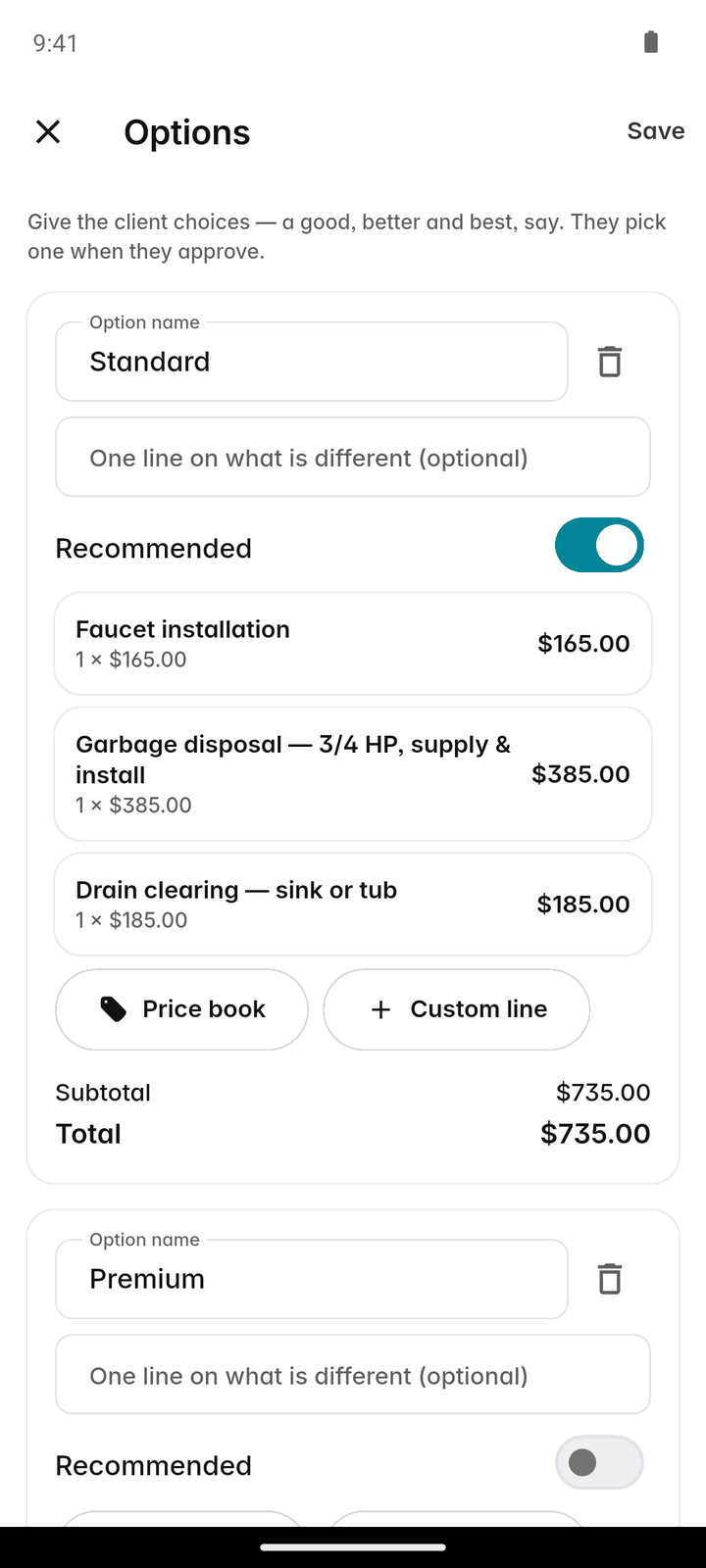
Put two to five versions of the job in one proposal. The customer weighs your options against each other rather than your price against another company’s.
Extra work is agreed before it is done
A change order is priced, sent and approved on the job itself, so the new total is on record before anyone picks up a tool.
A signature that holds up
Every approval records who signed, when, how and exactly what they chose, and the signature prints on the PDF.
How it works
Build the proposal
Start a quote as usual, then add sections: a cover page, a few words about your business and the scope of work, before the prices.
Add options and extras
Under Options, add 2 to 5 versions, each with a name, a one-line summary and its own lines. Mark one Recommended. Tick "Optional extra" on any line the customer can choose to add.
Get it signed
The customer opens the link, picks an option, ticks extras and signs. Or tap "Client signs now" and hand them your phone at the kitchen table.
Bill it in stages
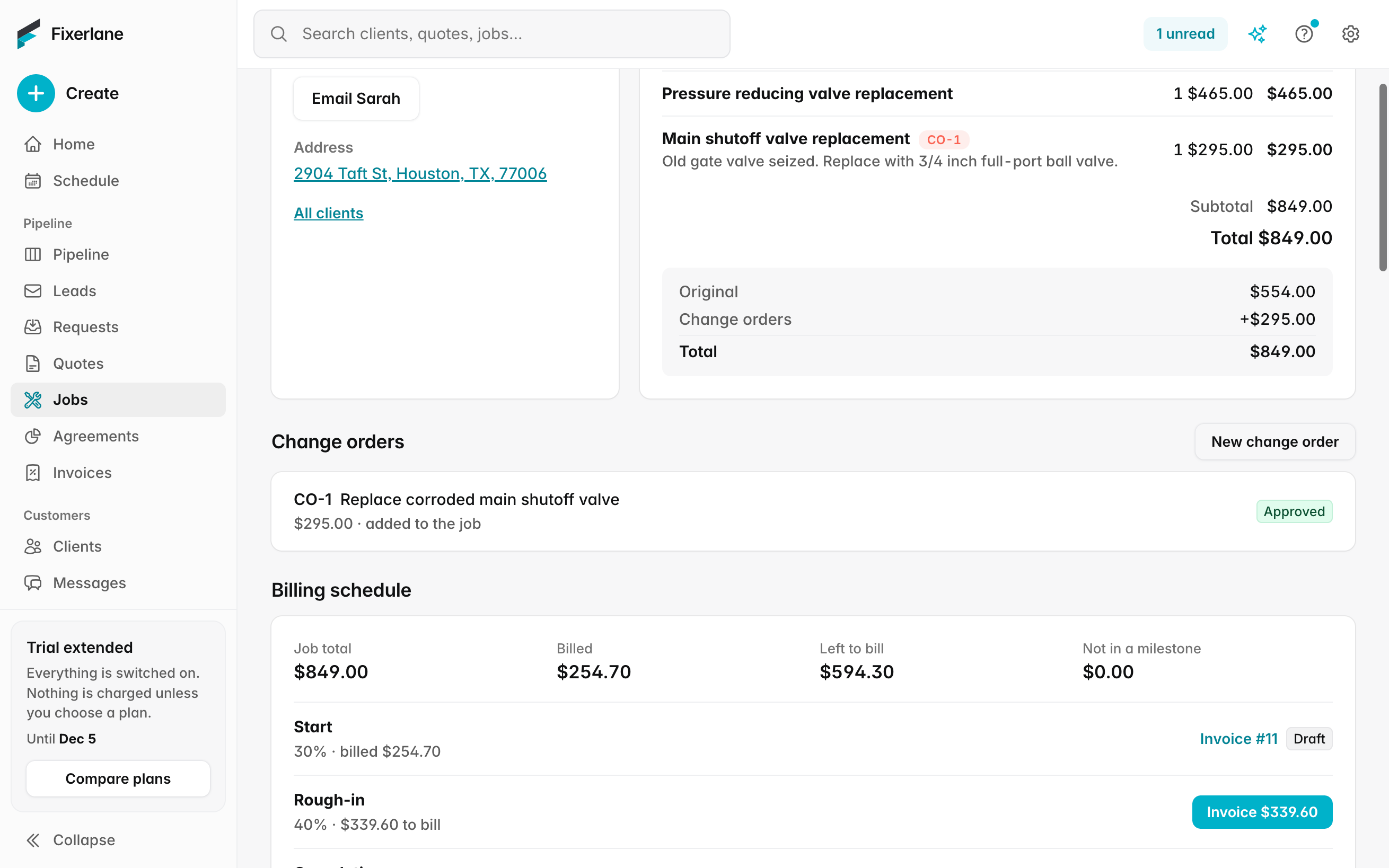
On the job, set up a billing schedule, for example 30% to start, 40% at rough-in and 30% on completion. Each stage has its own Invoice button.
Price what changes
When the scope grows, open the job, add a change order, and send it. Once approved, its lines join the job.
In more detail
Options and optional extras
Options suit work with a real choice in it: a repair or a replacement, a standard or a premium unit, one coat or two. Each option has its own lines and total, and the one marked Recommended is shown as such. Optional extras sit outside the total until the customer ticks them, and the total updates as they do. What they chose is recorded with the approval: the option, the extras and the total, so anyone on your team can see which version the customer said yes to before the job is scheduled or invoiced.
E-signatures, online or in person
With "Require a signature on approval" on, the customer signs with a finger, mouse or trackpad, or types their name instead. Fixerlane records the name, the time, whether it was drawn or typed, online or in person, the IP address and browser, and the option, extras and total they agreed to. The signature image is private to your business and the customer.
Change orders
For extra work on a job already under way, a change order is sent and approved like a quote, without options or a deposit. The job’s Change orders card then shows the original price, each approved change order and the new total, so the final invoice matches what was agreed step by step. A declined change order stays on record and changes nothing. Because every change was approved by the customer before the work, the conversation at the end of the job is about the finish, not about what was or was not agreed.
Deposits and progress billing
Ask for a deposit to book, as a percentage or a set amount, and the customer can pay it from the proposal link. A billing schedule splits the job into stages; a deposit already paid counts as the first payment, and the job shows what has been billed and what is left. Setting up a billing schedule is for owners and admins.
What it costs
Included in every plan: Fixerlane $19.99 a month for up to 10 people, Fixerlane Team $39.99 for up to 25, Fixerlane Business $69.99 for up to 50. Every plan starts with a 14-day free trial, and no card is needed to start.
See all plans →Not built yet
Listed here rather than discovered after you sign up:
- Consumer financing for customers
- Options and deposits on change orders
Common questions
- What is the difference between a quote and a proposal here?
- They are the same record. A proposal is a quote with more in it: a cover page, sections about your business and the scope, options and extras. Small jobs can stay a plain quote.
- How many options can one proposal have?
- Between 2 and 5. Each has its own name, summary and lines, and you can mark one as Recommended. The customer picks one when approving.
- Is a typed signature allowed?
- Yes. The customer can tap "Type my signature instead" and type their name. The record shows that it was typed rather than drawn.
- Can I use a change order instead of a new quote?
- Yes, for extra work on a job that is already under way. Open the job, find the Change orders card, tap New, add the lines and send it. Change orders have no options and no deposit.
- How does progress billing work with a deposit?
- A deposit already paid counts as the first payment on the billing schedule. Each later stage is invoiced with its own button, and the job shows what is billed and what remains.
- Does the signature appear on the PDF?
- Yes. The quote shows the signature, who signed, when, and whether it was drawn or typed, and it prints on the quote PDF.
- Can the customer ask for changes instead of approving?
- Yes, if you allow it in Settings → Client hub. "Ask for changes" needs no signature, and you can edit the proposal and send it again.
- What does the customer see when they open a proposal?
- Your logo and colour, the cover page and sections you wrote, then the options side by side with the Recommended one marked, any optional extras to tick, the total as it stands, and the signature box. They need no account or app, only the link from the email.
Works well with
Quoting
Build the quote on site, send it before you leave the driveway, and know the moment the customer opens it, approves it or asks for a change.
Invoicing
Raise the invoice from the job you just finished, send it with a payment link, and see what is still owed without opening a spreadsheet.
Payments
Customers pay from the quote or invoice link, or tap their card on your phone. The money goes into your own Stripe account, and Fixerlane takes nothing from a card payment.
Price book
Write down what you charge once, and every quote and invoice after that is a few taps. Your cost stays private, and changing a price never changes a quote you already sent.
The same tools in the Fixerlane app
Fixerlane runs in the browser and on Android and iPhone, with the same tools in each. The app keeps your day on the phone, so it keeps working without signal.


Try it on your own work
Start the 14-day trial with no card, or claim your free listing first and add the tools later.
All features →