Price book
A price book for home service pros
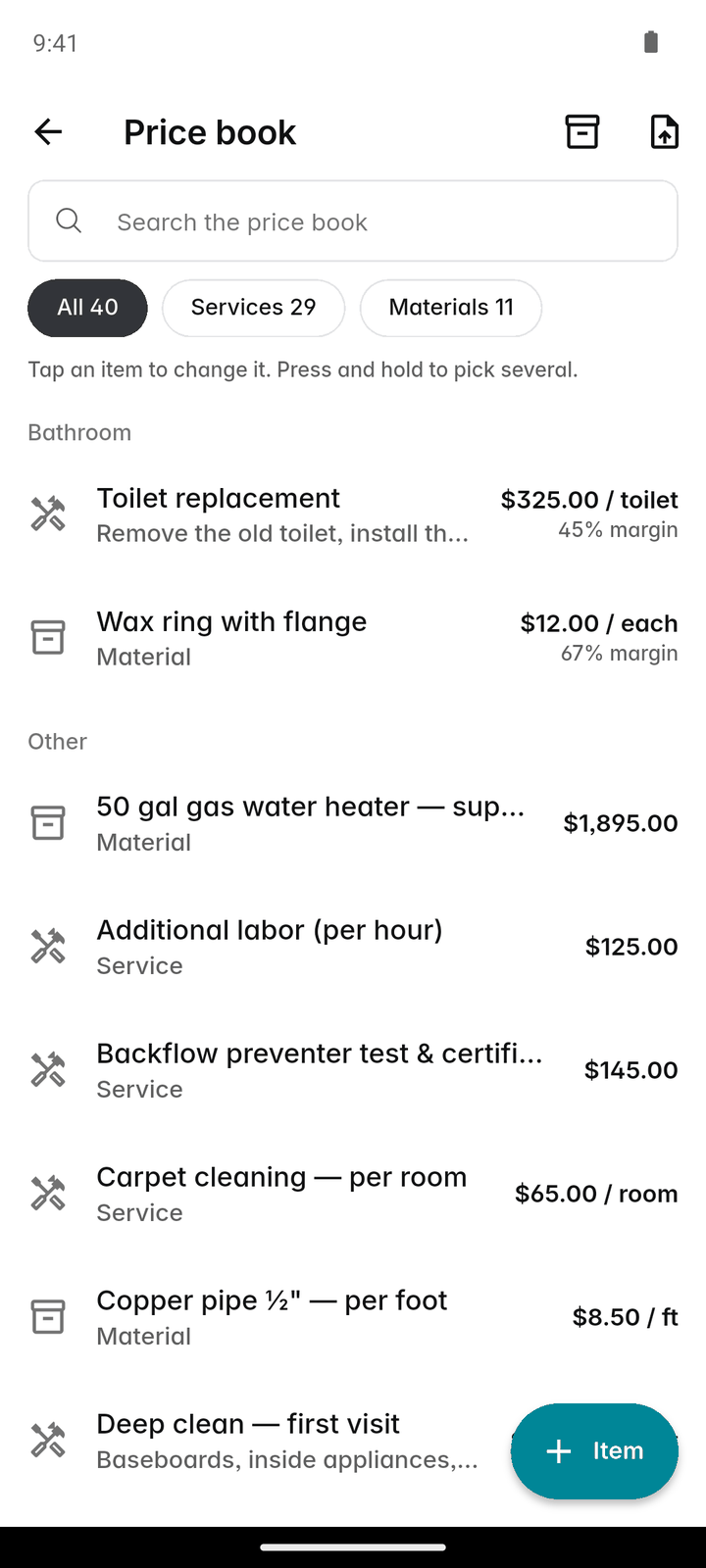
Write down what you charge once, and every quote and invoice after that is a few taps. Your cost stays private, and changing a price never changes a quote you already sent.
14-day free trial, no card · listing and leads free forever
Why pros use it
Faster quotes, the same prices
Everyone on the team picks from the same list, so two people quoting the same job quote the same price.
Your margin, on every line
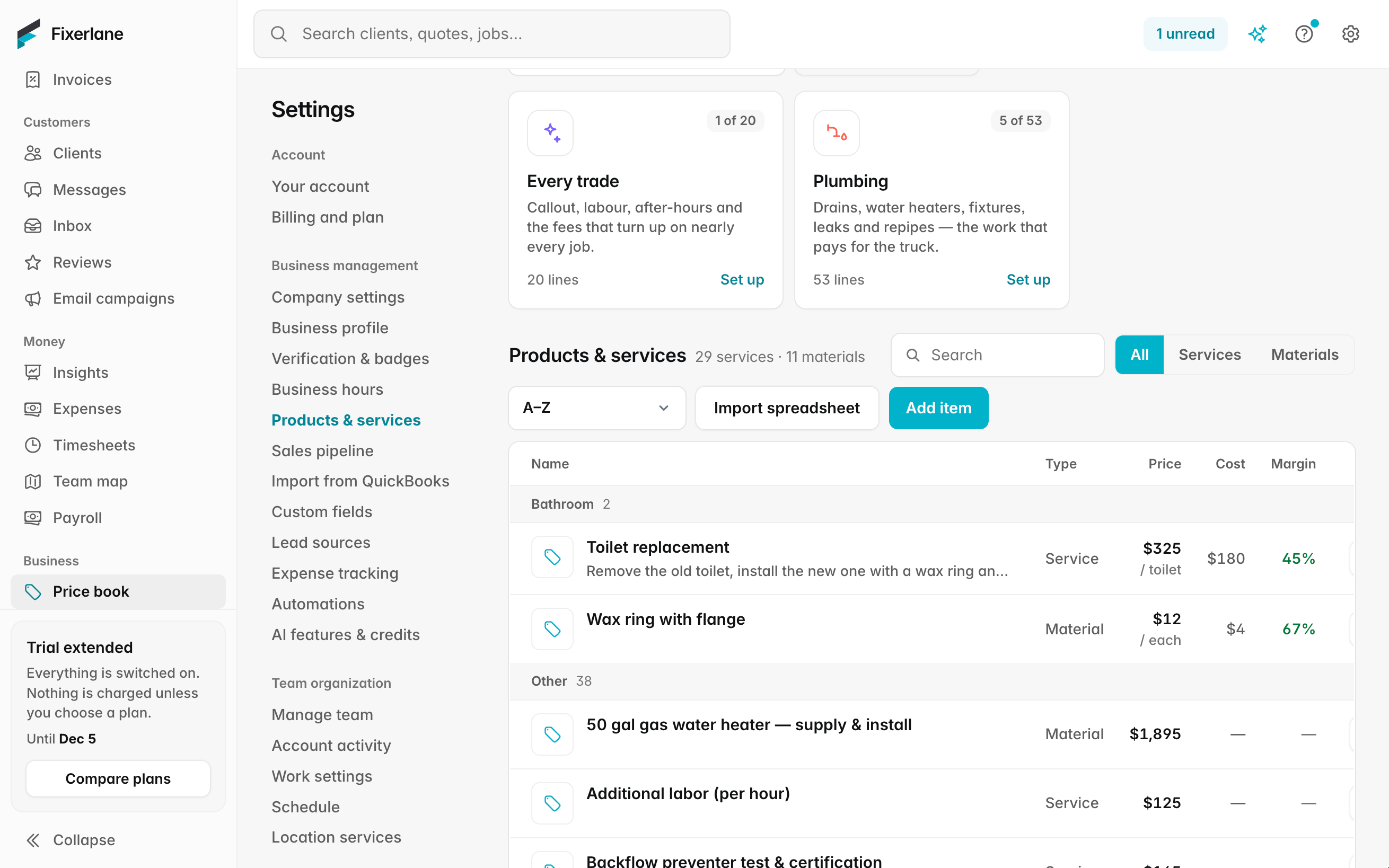
Add what an item costs you next to what you charge. Customers never see it, and job costing uses it to show what each job made.
A head start for your trade
Start from a starter price list for your trade, then change every price to your own before anything goes to a customer.
How it works
Open the price book
More → Price book on the phone, or Price book on the web. Owners and admins can change it; everyone can use it on quotes and invoices.
Add or import items
Tap Add and choose Service or Material, or start from your trade’s starter list, or import a supplier’s price list from a CSV file.
Fill in the details
Name, description, price, unit ("per hour", "each"), your cost, a photo if it helps, and whether it is taxable.
Set your tax rates
Add each rate from 0 to 30% and pick one as the default for new quotes. Where several taxes apply, a tax group adds them together.
Use it everywhere
Add lines from the price book on any quote, change order or invoice, then adjust the quantity for this job.
In more detail
Starter price lists by trade
Several trades have a starter list of common services and materials to save typing the first fifty lines. The prices in them are placeholders, not advice: change each one to what you actually charge before you send a quote. Items you never offer can be deleted, and anything you sell that the list does not cover can be added beside it. The software pages for each trade say whether that trade has a starter list yet; where it does not, you build the price book from your own services, which takes an evening once and saves time on every quote after.
Photos on items
Add a photo to a price book item, such as the unit you install or the finish you offer, so the person quoting picks the right line. It is useful when you sell several models that differ by a letter in the name, or when a new team member is still learning which part is which. A photo is optional; items without one work exactly the same.
Supplier price list import
Bring a supplier’s price list in from a CSV file instead of typing it. You match the columns to name, description, unit and cost, check the rows, and add them as materials. Set your own selling price on top; the cost stays private. Imports are one-off: when the supplier changes their prices, import the new list again.
Tax that stays put
Each quote and invoice keeps the tax rate it was made with. Changing a rate, or the default, only affects new documents, so last month’s quote still says what the customer agreed to. Items marked not taxable stay untaxed on every document they go on, so a quote that mixes taxable parts with untaxed labour adds up correctly without a calculator. Each quote and invoice shows the tax as its own line, worked out to the cent, and the taxation report in Insights totals what you charged for each period when it is time to file.
What it costs
Included in every plan: Fixerlane $19.99 a month for up to 10 people, Fixerlane Team $39.99 for up to 25, Fixerlane Business $69.99 for up to 50. Every plan starts with a 14-day free trial, and no card is needed to start.
See all plans →Not built yet
Listed here rather than discovered after you sign up:
- A live connection to supplier catalogues: price lists are imported from a file
- Automatic markup rules that reprice items when your cost changes
Common questions
- Can customers see my cost?
- No. "Your cost" is only for you and for job costing. Quotes, invoices and PDFs show the price you charge.
- Are the starter prices right for my area?
- They are a starting point only. Prices vary by area and business, so change every price to your own before sending anything.
- What file does a supplier price list need to be?
- A CSV file, which most suppliers can send and any spreadsheet can save. You match its columns to the price book fields before anything is added.
- If I change a price, do my old quotes change?
- No. A quote keeps the prices and tax it was sent with. Only new quotes and invoices use the new price.
- Can I handle more than one tax on a line?
- Yes. Make a tax group that adds the rates together, and use it like any single rate.
- Can I bring my products in from QuickBooks?
- Yes, as a one-time import from a QuickBooks Online or Desktop export file. Nothing syncs back to QuickBooks afterwards.
- Can I use price book items on invoices and change orders too?
- Yes. The same items are there whenever you add a line to a quote, a change order or an invoice, with the price, unit and tax setting filled in. You can still change the quantity or the price on that one document without changing the price book.
- What is the difference between a service and a material?
- A service is labour you sell, such as an hour of work or a standard visit. A material is something you supply, such as a part or a bag of product. Both can carry your cost, so job costing can show labour and materials separately.
Works well with
Quoting
Build the quote on site, send it before you leave the driveway, and know the moment the customer opens it, approves it or asks for a change.
Job costing
Fixerlane puts the time, expenses and miles logged against a job next to what you charged for it, so you can see profit and margin per job instead of guessing at the end of the year.
Invoicing
Raise the invoice from the job you just finished, send it with a payment link, and see what is still owed without opening a spreadsheet.
Proposals and change orders
Offer a choice instead of a single price, get it signed online or on site, and price the extra work that turns up halfway through without starting a new quote.
The same tools in the Fixerlane app
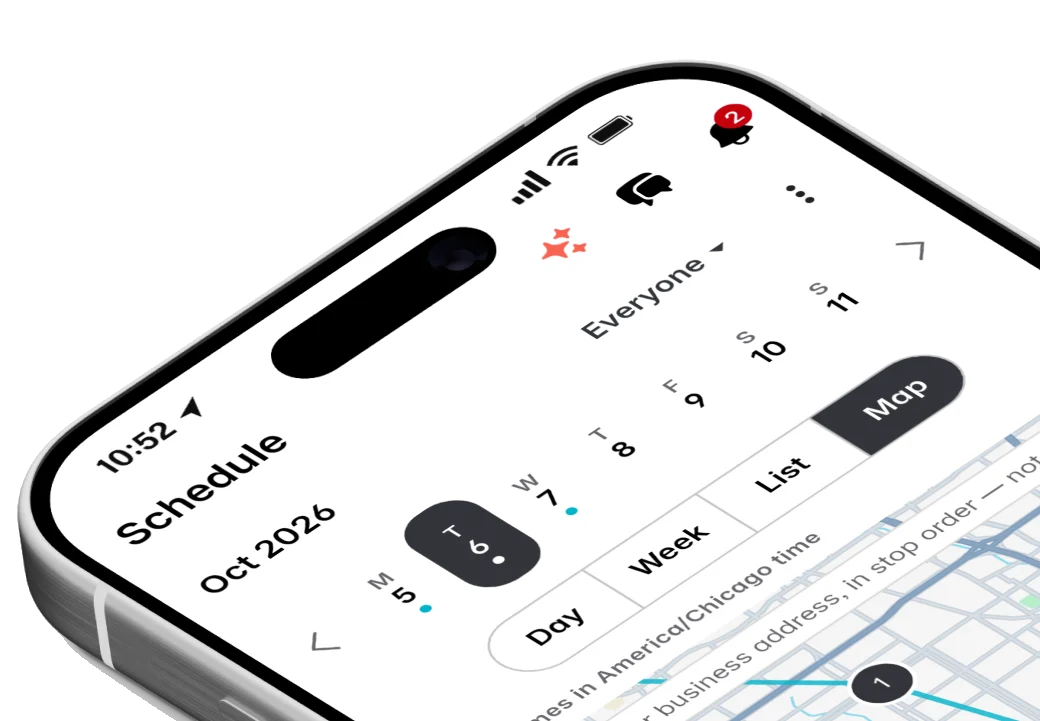
Fixerlane runs in the browser and on Android and iPhone, with the same tools in each. The app keeps your day on the phone, so it keeps working without signal.


Try it on your own work
Start the 14-day trial with no card, or claim your free listing first and add the tools later.
All features →