Job costing
Job costing that shows what each job made
Fixerlane puts the time, expenses and miles logged against a job next to what you charged for it, so you can see profit and margin per job instead of guessing at the end of the year.
14-day free trial, no card · listing and leads free forever
Why pros use it
Find the jobs that lose money
A job that ran two days over or needed a second trip for parts shows up in the margin. You can price the next one like it properly, or decide it is work you would rather not take.
Built from work you already record
Clock-ins on visits, receipts on the job and the mileage log are the raw material. There is no separate costing sheet to fill in.
Your costs stay yours
Costs and margins are for owners and admins. Clients never see your cost on a price book item, and crew never see the report.
How it works
Add your costs to the price book
Give each service or material a "Your cost" next to its price, so the margin is known before the work is sold. Clients never see it, on the quote, the invoice or the PDF.
Log time and spending against the job
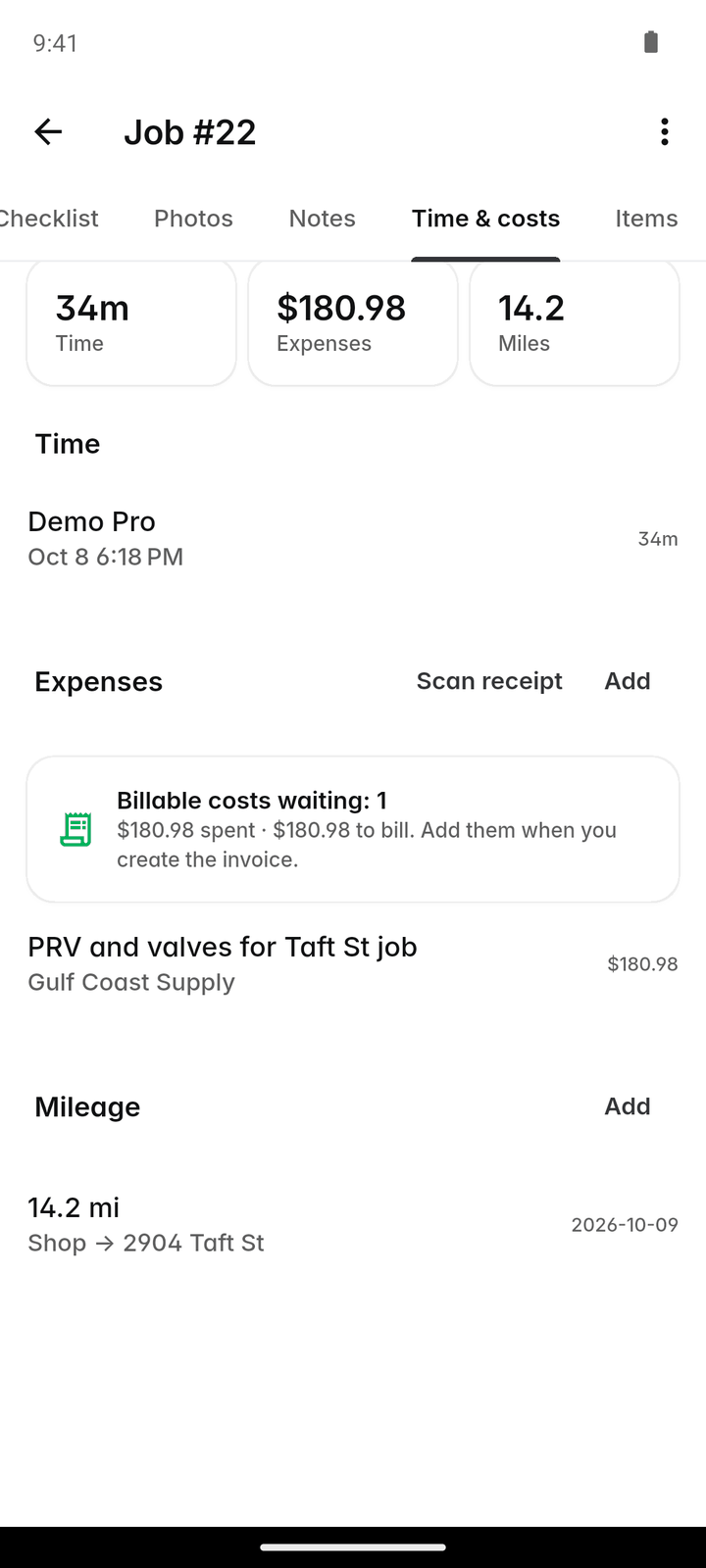
Crew clock in to the visit, and starting a visit switches their clock to it. Receipts are snapped with the job picked, and trips are logged against it as they happen.
Check a job as it goes
Open the job’s "Time & costs" tab to see its time, expenses and miles so far. On a long job, that is the moment to raise a change order rather than absorb the extra work.
Read profit and margin
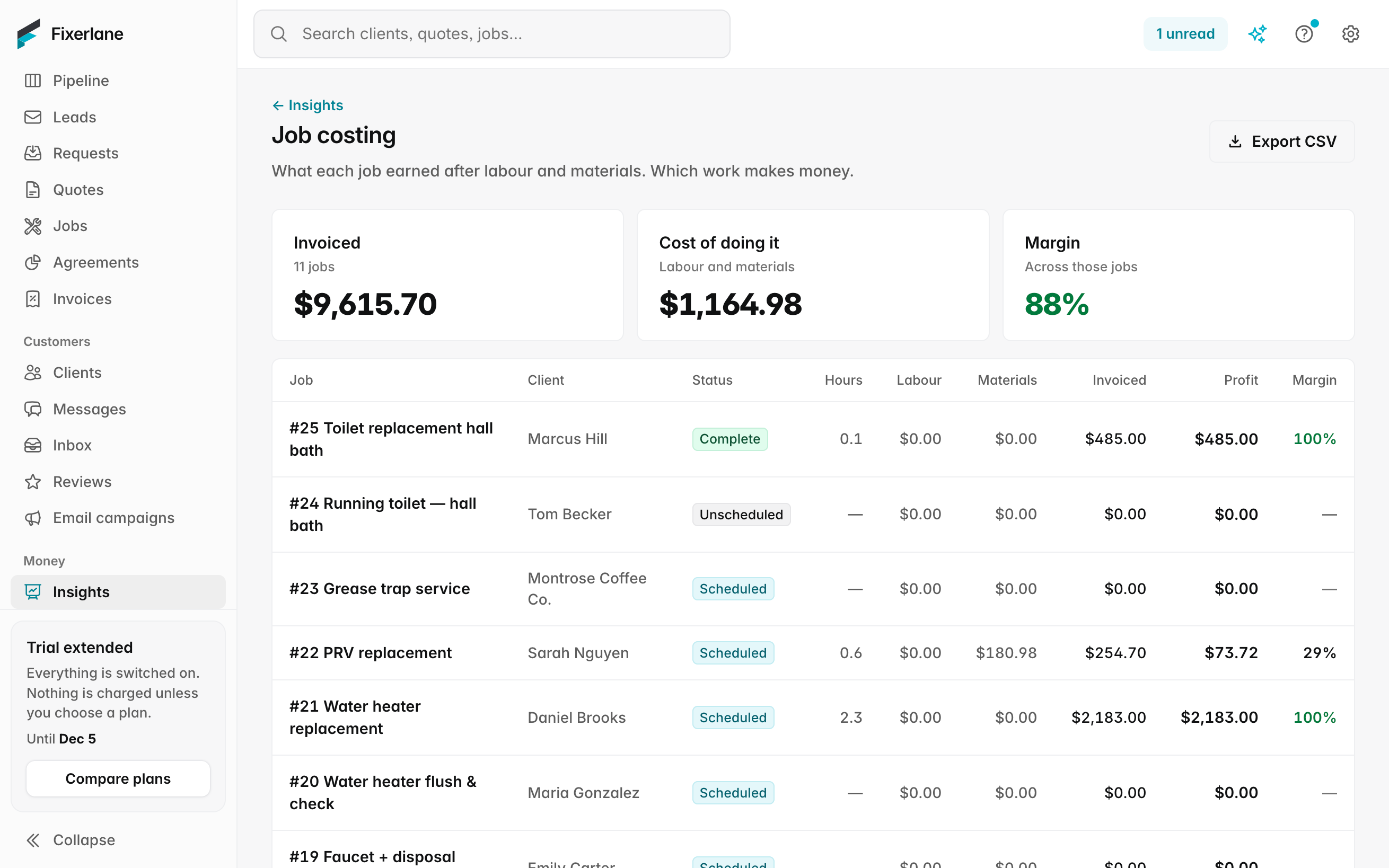
Insights → Job costing shows revenue, costs, profit and margin for each job in the date range you pick, and exports to CSV.
Price the next one better
Read down the margins to find the kinds of work that pay and the ones that do not, then change the price in your price book. New quotes use the new price; quotes already sent keep the old one.
In more detail
Where each cost comes from
Labour comes from timesheet entries on the job, counted at each person’s hourly cost. Expenses come from receipts tied to the job. Mileage comes from trips logged against it, at your rate per mile from Settings → Expense tracking. Revenue comes from what you invoiced for the job. Because every figure traces back to a time entry, a receipt or a trip, you can open the job and see exactly which entry made a margin look wrong, and fix the entry rather than the report.
Set hourly costs first
Labour is counted at each person’s hourly cost, which is not the same as their pay rate once taxes and insurance are in. Contact support to have those costs set. Until they are, labour shows as $0 and margins look better than they are, so do this before you trust the numbers. Time also has to be clocked against the job: hours logged as General with no job attached are paid, but they do not land on any job’s costs.
Margin on the price book
With "Your cost" filled in on price book items, you can see the margin on a service before it goes on a quote. The products and services report shows which items you sell most and what they bring in. A popular service with a thin margin is usually the first price worth raising.
Read it alongside the other reports
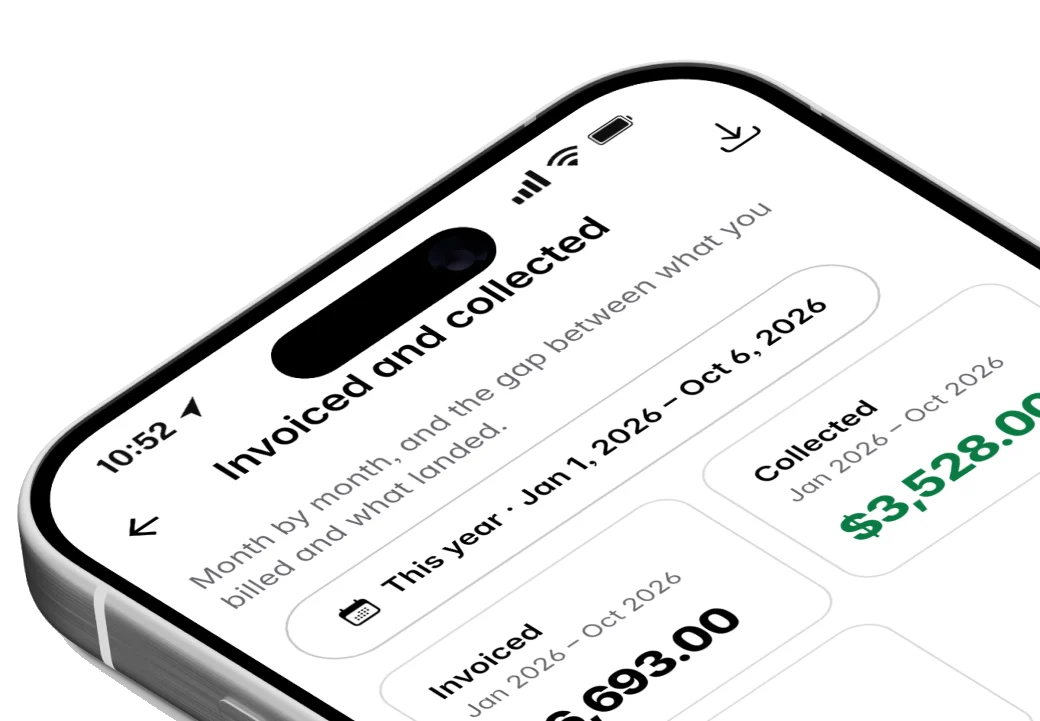
Job costing is one of 18 reports in Insights. Team productivity shows hours by person, quote performance shows how many quotes were approved, and invoiced and collected shows what came in. Together they explain why a month went the way it did: busy but thin, or quiet but well priced. Owners and admins see all of them; nobody else on the team does.
What it costs
Included in every plan: Fixerlane $19.99 a month for up to 10 people, Fixerlane Team $39.99 for up to 25, Fixerlane Business $69.99 for up to 50. Every plan starts with a 14-day free trial, and no card is needed to start.
See all plans →Not built yet
Listed here rather than discovered after you sign up:
- Setting hourly labour costs yourself in the app: support sets them for you today
- Budget-versus-actual estimates per job phase
Common questions
- Why does labour show as $0?
- Labour is counted at each person’s hourly cost, and those costs have not been set yet. Contact support to have them set; job costing then includes labour.
- Do my clients see my costs?
- No. "Your cost" on a price book item and everything in job costing are for your business only. Quotes and invoices show prices, not costs.
- Who can see job costing?
- Owners and admins. Reports show the business’s money, so office staff and crew do not get the Insights entry.
- Does it include materials I bought for the job?
- Yes, when the expense is tied to the job. Snap the receipt and pick the job, and it counts in that job’s costs.
- Does driving count as a cost?
- Trips logged in the mileage log against a job count at your rate per mile, which you set in Settings → Expense tracking.
- Can I export it?
- Yes. Every report, job costing included, exports to CSV for Excel or Google Sheets, so your accountant or bookkeeper can work from the same figures you see.
- Can I see costs while the job is still running?
- Yes. The job’s "Time & costs" tab shows the hours, expenses and miles logged so far, so a job that is running over shows it before the invoice, not after.
- Does it work for recurring jobs?
- Yes. Time and expenses are logged against the job, whichever visit they came from. The recurring work report shows the visits done and billed alongside it.
Works well with
Expenses and receipts
Photograph a receipt at the supply counter and the expense fills itself in for you to check. Put it on the job, pay back whoever bought it, or add it to the client’s invoice.
Timesheets and payroll
The team clocks in to what they are doing, you approve the week, and Fixerlane hands you a payroll file with regular and overtime hours worked out. You pay people the way you already do.
Insights and reports
Eighteen reports on money, work and clients, a dashboard for the owner, a revenue goal to aim at and a short note each week on what changed. Every report exports to CSV.
Price book
Write down what you charge once, and every quote and invoice after that is a few taps. Your cost stays private, and changing a price never changes a quote you already sent.
The same tools in the Fixerlane app
Fixerlane runs in the browser and on Android and iPhone, with the same tools in each. The app keeps your day on the phone, so it keeps working without signal.


Try it on your own work
Start the 14-day trial with no card, or claim your free listing first and add the tools later.
All features →