Expenses and receipts
Receipt scanning and expense tracking for contractors
Photograph a receipt at the supply counter and the expense fills itself in for you to check. Put it on the job, pay back whoever bought it, or add it to the client’s invoice.
14-day free trial, no card · listing and leads free forever
Why pros use it
No shoebox at the end of the month
The receipt is captured when it is bought, while it is still in your hand, with the job it was for. The photo stays with the expense, so a faded paper slip is not the only copy.
Materials make it onto the invoice
Mark an expense "Bill it to the client" and it can go on that client’s invoice, so the extra fittings you picked up mid-job are paid for.
People are paid back
Turn on "I paid — reimburse me" and the amount shows in that person’s payroll line for the period. The crew member who paid for fittings out of their own wallet does not have to remind you, and you do not have to remember.
How it works
Snap the receipt
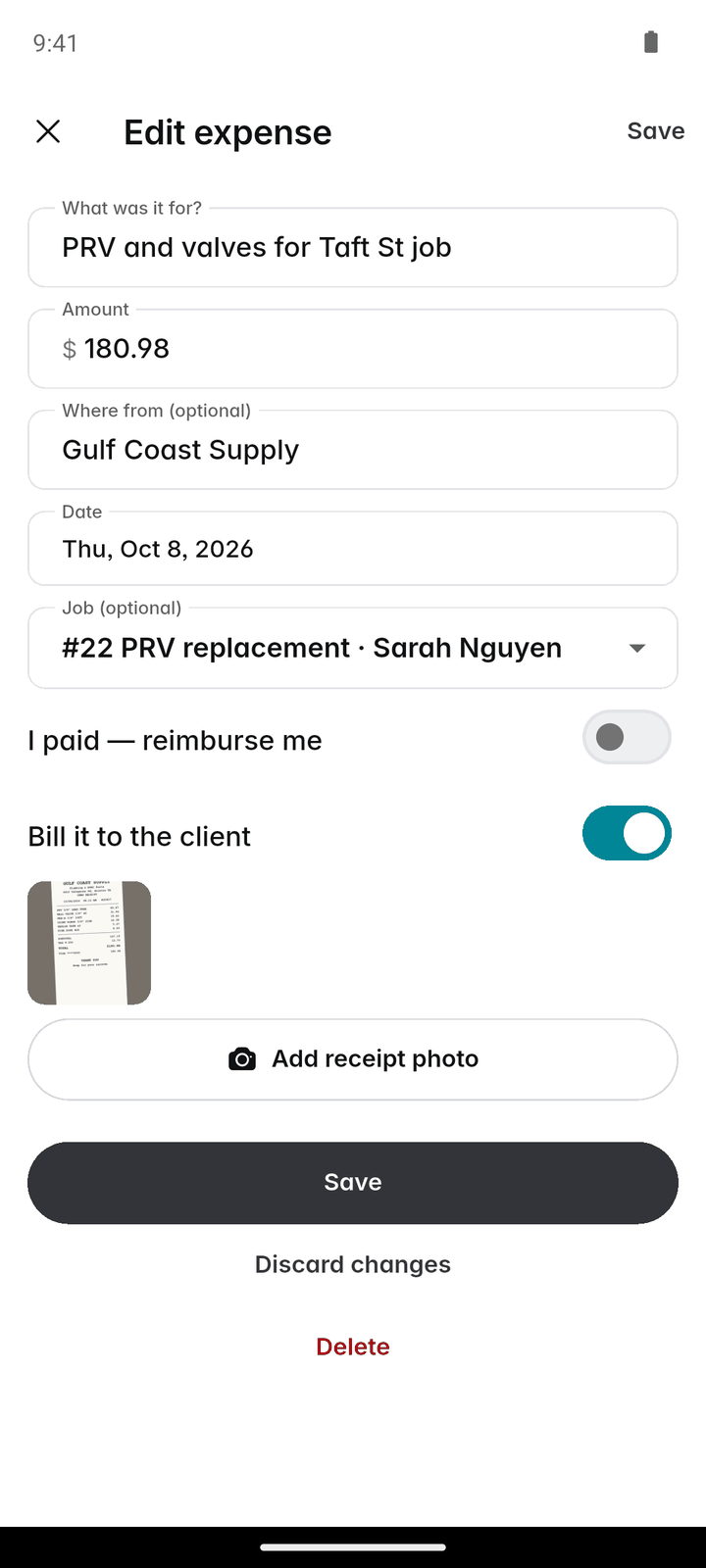
Tap + → Expense and take a photo of the receipt, or choose one from your photos.
Check what was filled in
The phone reads the text on the receipt, and Fixerlane AI uses that text to fill in the amount, vendor and date. Check them and correct anything it got wrong.
Say what it was for
Add a description and pick the job it belongs to, so it counts in that job’s costs.
Reimburse or bill
Turn on "I paid — reimburse me" if it came out of your own pocket, or "Bill it to the client" to charge it on. Save.
See it on the job
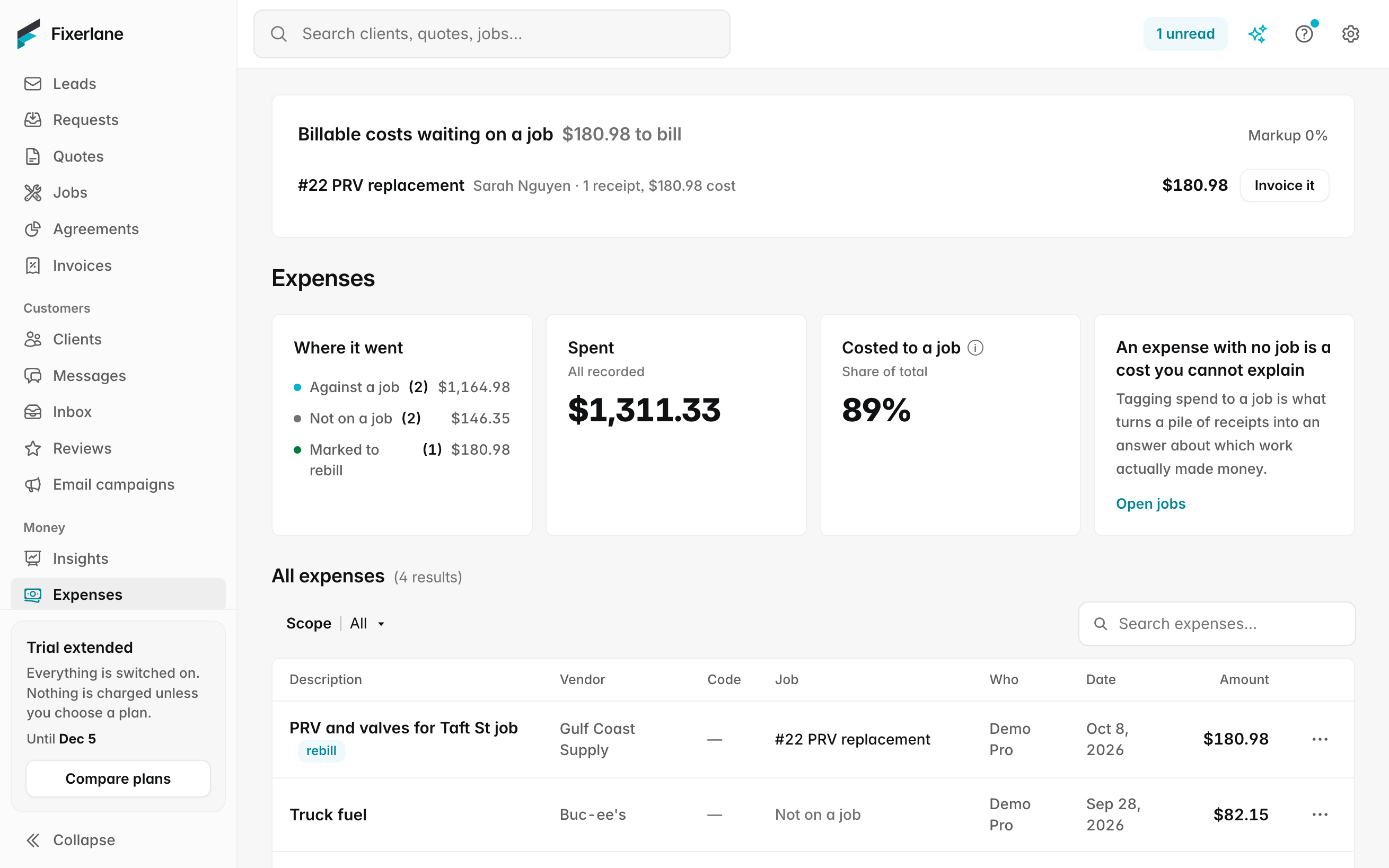
The expense appears on the job’s "Time & costs" tab with the receipt attached, and counts in job costing and, if it is to be reimbursed, in payroll.
In more detail
Read on the phone, filled in by AI
The text on the receipt is read on the phone itself; the photo does not have to be uploaded first for that. The text is then sent to Fixerlane AI, which picks out the amount, vendor and date. You check the result before you save. The photo is stored with the expense, so the original is there when your accountant asks. Filling in a receipt uses a few AI credits, and if AI is turned off for your business you type the fields yourself.
Email receipts in
Plenty of receipts arrive by email. At the top of More → Expenses, "Email receipts in" shows your business’s own receipts address. Forward receipts to it from your team’s own email addresses, up to 5 PDFs or photos at a time, 15 MB each. Fixerlane reads the amount, vendor and date where it can, and each one waits for someone to Approve or Discard it.
Billable costs on the invoice
An expense marked to bill to the client is waiting when you invoice that job, so you can add it as a line rather than remembering it. What you charge on it is up to you, and the client only sees the line on the invoice, never your receipt. It closes the gap where a mid-job trip to the supply house for parts quietly comes out of your margin because nobody wrote it down.
Mileage rate and accounting codes
Settings → Expense tracking sets your rate per mile and your accounting codes. A job’s "Time & costs" tab shows its time, expenses and miles together, and Insights → Job costing turns them into profit and margin. Owners and admins see every expense; the rest of the team sees the receipts they added themselves, and what they are owed back.
What it costs
Included in every plan: Fixerlane $19.99 a month for up to 10 people, Fixerlane Team $39.99 for up to 25, Fixerlane Business $69.99 for up to 50. Every plan starts with a 14-day free trial, and no card is needed to start.
See all plans →Not built yet
Listed here rather than discovered after you sign up:
- Bank or card feeds: expenses are added by photo, by hand or by email
- Syncing expenses to accounting software: export them as CSV
Common questions
- Is the receipt photo sent to an AI company?
- The text is read from the photo on the phone itself. That text, not the photo, is sent to Fixerlane AI to fill in the fields. The photo is stored with the expense in your Fixerlane account. Our AI providers do not use what we send to train their models.
- What if it reads the amount wrong?
- Correct it before you save. Fields filled in from a receipt are a suggestion for you to check, the same as anything else AI fills in.
- Does receipt scanning cost extra?
- It uses a few AI credits each time. Every plan includes 50 credits a month and the 14-day trial includes 200. If you would rather not use AI, type the fields yourself.
- Can my crew add expenses?
- Yes. Anyone on the team can add expenses and photograph receipts. Office and crew see their own receipts; owners and admins see everyone’s.
- Who can forward receipts by email?
- Your team, from their own email addresses, to your business’s receipts address. Each forwarded receipt waits as a draft until someone approves or discards it.
- Can I put a material cost on the client’s invoice?
- Yes. Mark the expense "Bill it to the client" and add it to their invoice when you bill the job.
- Can I export my expenses for my accountant?
- Yes. Lists and reports export to CSV, which opens in Excel or Google Sheets.
- Can I scan a receipt without signal?
- Filling in the fields uses Fixerlane AI, which needs signal. Without signal, type the amount, vendor and date yourself, or keep the receipt and snap it once you are back in range.
Works well with
Job costing
Fixerlane puts the time, expenses and miles logged against a job next to what you charged for it, so you can see profit and margin per job instead of guessing at the end of the year.
Invoicing
Raise the invoice from the job you just finished, send it with a payment link, and see what is still owed without opening a spreadsheet.
Timesheets and payroll
The team clocks in to what they are doing, you approve the week, and Fixerlane hands you a payroll file with regular and overtime hours worked out. You pay people the way you already do.
Fixerlane AI
Ask what is on tomorrow, who owes you money or how last month went, by typing or speaking. Have it draft a quote, book a visit or write a reply. It shows you what it will do, and waits for you to confirm.
The same tools in the Fixerlane app
Fixerlane runs in the browser and on Android and iPhone, with the same tools in each. The app keeps your day on the phone, so it keeps working without signal.


Try it on your own work
Start the 14-day trial with no card, or claim your free listing first and add the tools later.
All features →