Checklists
Job checklists for field service crews
Write down how a job is done once, and every visit after that follows the same steps, with the photos and signatures to prove it.
14-day free trial, no card · listing and leads free forever
Why pros use it
The same job, done the same way
A new hire follows the same steps as you would, in the same order, without a phone call to ask what comes next. Your way of doing the work stops living only in your head and starts living on every job.
Proof, not memory
Photo and signature steps record what was done and that the customer saw it, attached to the job for later.
Nothing marked done too early
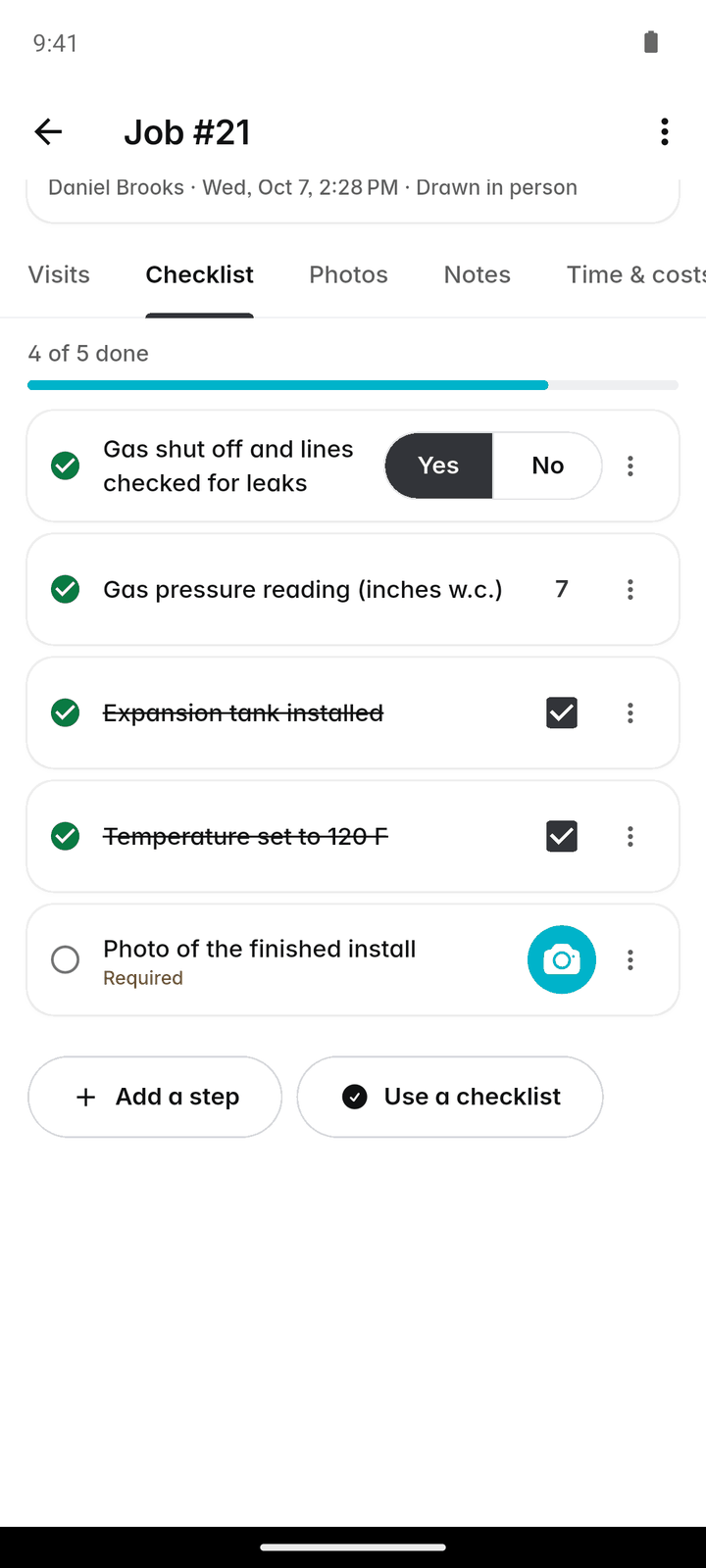
Required steps must be completed before a job can be marked complete, so a missed step is caught on site, not by the customer.
How it works
Write the checklist
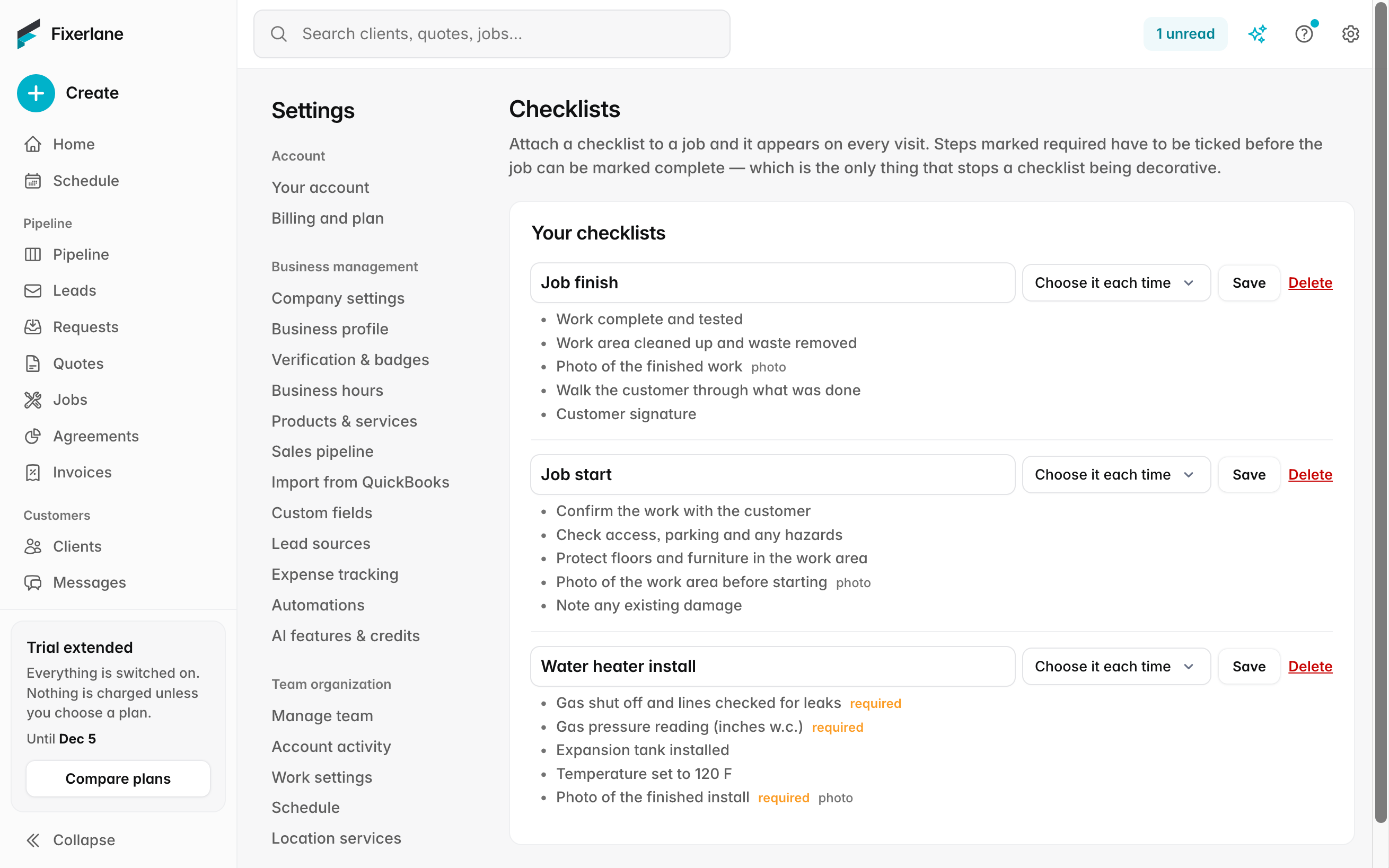
More → Checklists → Checklist. Name it after the kind of job, for example "Water heater install".
Add the steps
Each step is a tick, text, a number, yes or no, a photo or a signature. Drag them into order and mark the ones "Required to complete the job".
Choose where it goes
Open it again to attach it to every new job, every assessment, or both, or leave it to be added by hand.
Work through it on site
On the job’s Checklist tab, the crew ticks off each step, takes the photos and collects the signatures. Progress shows as "x of y done".
Finish the job
Once every required step is done, "Mark job complete" goes through, and the checklist stays on the job as a record of the visit.
In more detail
Six kinds of step
A tick for "filter changed". Text for what you found. A number for a pressure, a reading or a count. Yes or no for "customer present". A photo for the before and after. A signature for the customer or the person who did the work. Together they turn a checklist into a record of the visit that you can open months later, when a customer asks what was done, a warranty claim needs evidence, or you want to see the reading from last season before this one.
Attached automatically, or by hand
A checklist set for every new job or every assessment is added for you. For anything else, tap "Use a checklist" on the job’s Checklist tab, or "Add a step" for a one-off. Changing or deleting a checklist later does not change jobs that already have it, so past records stay as they were done. One-off steps added with "Add a step" belong to that job alone, so a note about this customer’s gate code or dog never ends up on everyone else’s list, and the standard steps stay the same for every job that uses them.
Client sign-off at the end
Separately from the checklist, "Client sign-off" on the job has the customer check their printed name and sign on your phone under "Work completed to my satisfaction". It works with no signal, shows on the job with the name and time, and prints on the invoice. Settings → Work settings can make it required before a job is marked complete; it is off unless you turn it on. With it required, completing a job without the customer’s signature is refused until they sign, which settles most "you never finished" conversations before they start.
Offline, and in the reports
Checklists work on the phone without signal and sync when it returns. Photos are kept on the phone first and upload when you have signal, and you can long-press a photo to show it on the customer’s copy or hide it. The checklists report in Insights, for owners and admins, shows how checklists are being completed across your jobs, so you can see where steps are being skipped.
What it costs
Included in every plan: Fixerlane $19.99 a month for up to 10 people, Fixerlane Team $39.99 for up to 25, Fixerlane Business $69.99 for up to 50. Every plan starts with a 14-day free trial, and no card is needed to start.
See all plans →Not built yet
Listed here rather than discovered after you sign up:
- Conditional steps that appear only after a certain answer
- Checklists attached automatically by job type or service: it is every job, every assessment, or by hand
Common questions
- Can a crew member skip a required step?
- They can work in any order, but the job cannot be marked complete until every required step is done.
- Do checklists work without signal?
- Yes. Steps can be completed offline and sync when the phone reconnects. Photos upload once there is signal.
- If I edit a checklist, do old jobs change?
- No. Jobs that already have the checklist keep the version they were given, so finished work stays on record as it was done.
- Can the customer sign on the checklist?
- Yes, with a signature step. There is also a separate client sign-off on the job, which prints on the invoice and can be required before completion.
- Can I add a one-off step to a single job?
- Yes. On the job’s Checklist tab, tap "Add a step". It belongs to that job only.
- Who can write checklists?
- Owners and admins set them up in More → Checklists. Everyone assigned to a job can work through its checklist.
- What kinds of job suit a checklist?
- Anything you do the same way more than once: a seasonal tune-up, a pool opening, a move-out clean, an inspection, a panel upgrade. Start with the job your newest person gets wrong most often, and add the steps you would otherwise explain over the phone.
- Can a checklist be attached to assessments?
- Yes. Open the checklist and choose to attach it to every new job, every assessment, or both. An assessment checklist is useful for the questions and photos you need before you can quote.
Works well with
Scheduling
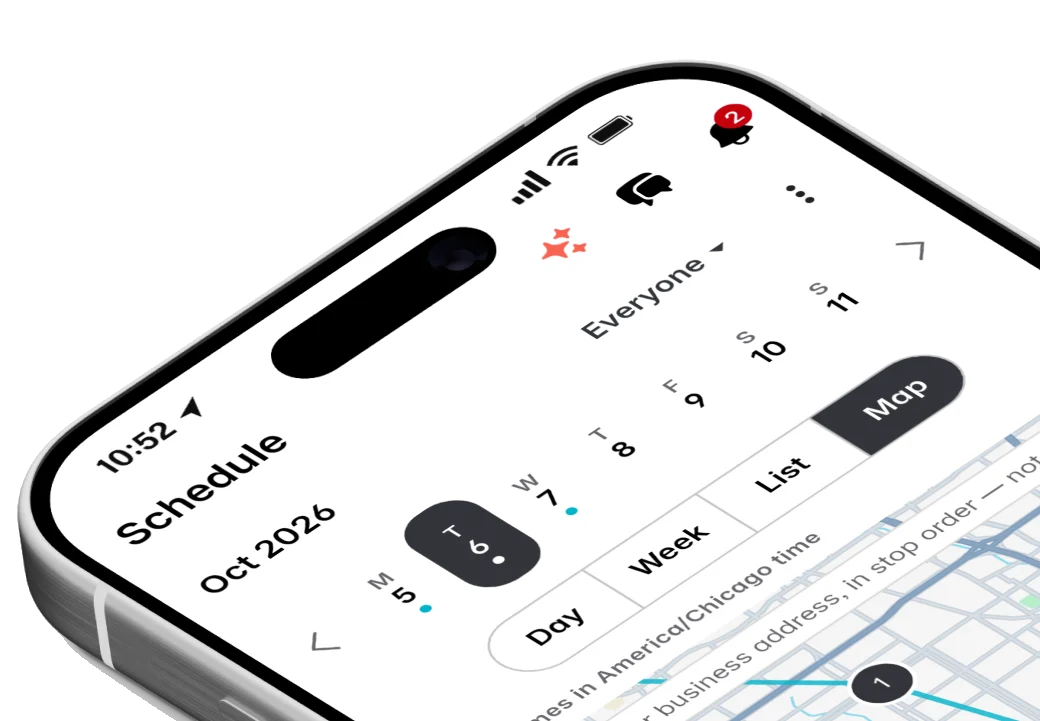
Jobs, visits and arrival windows laid out by day and by person, so you can see the week at a glance and move it around without a phone call to every customer.
Mobile app
Everything the web console does is in the app, and the app keeps working in basements, crawl spaces and dead zones. Changes wait on the phone and send themselves when signal comes back.
Team and crews
Add the people who work for you, decide what each of them can see and do, and put them into crews you can send to a job in one go. Plans are priced by team size, not per user.
Service agreements
Set the visits once and Fixerlane keeps booking them. Set the price once and it bills the client every month, quarter or year, by emailed invoice or their saved card.
The same tools in the Fixerlane app
Fixerlane runs in the browser and on Android and iPhone, with the same tools in each. The app keeps your day on the phone, so it keeps working without signal.


Try it on your own work
Start the 14-day trial with no card, or claim your free listing first and add the tools later.
All features →