Client management
Client management for home service businesses
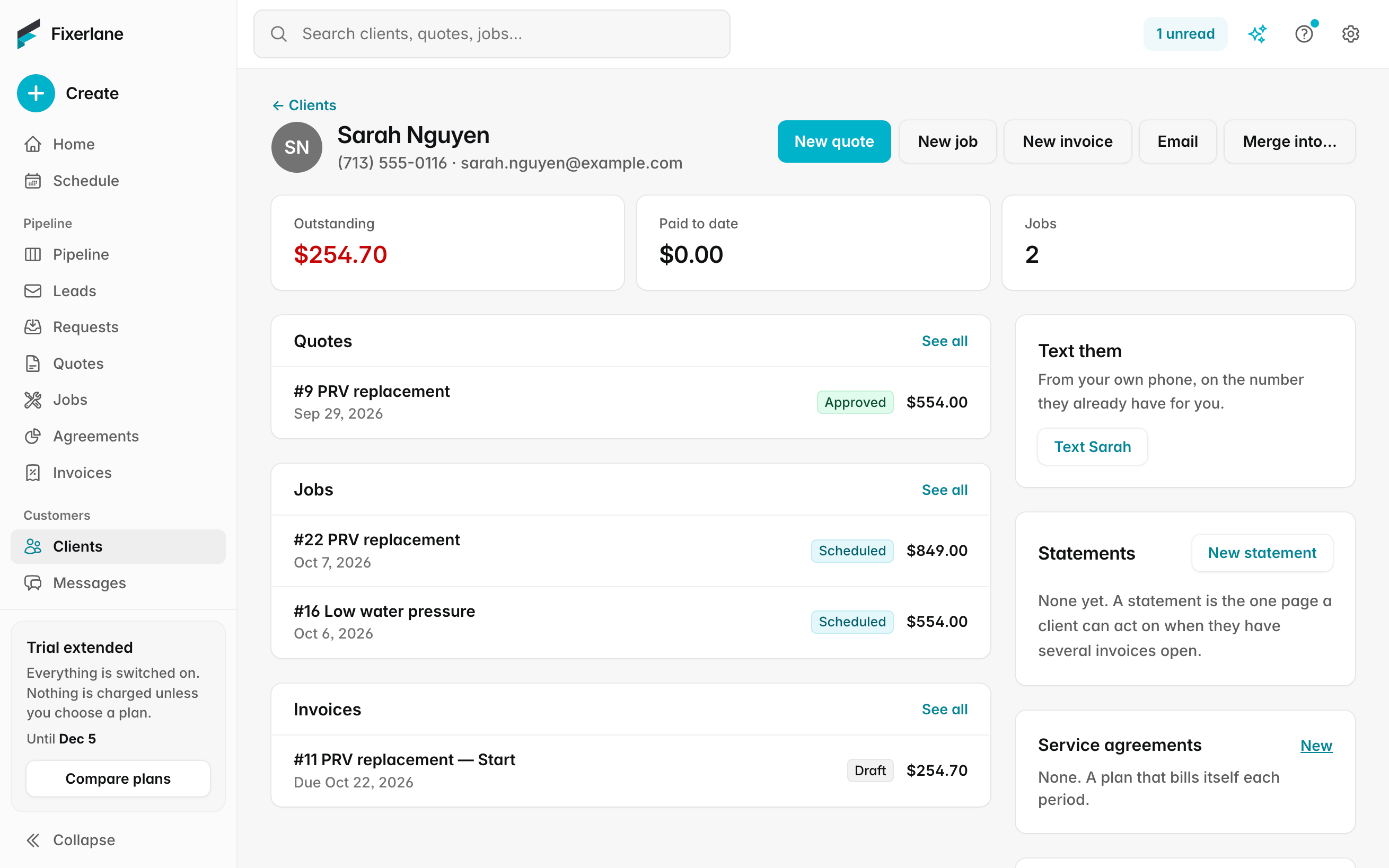
Each client is one record: their addresses, the equipment at each, the people you deal with, and every quote, job, invoice and message. Anyone on the job sees what they need without phoning the office.
14-day free trial, no card · listing and leads free forever
Why pros use it
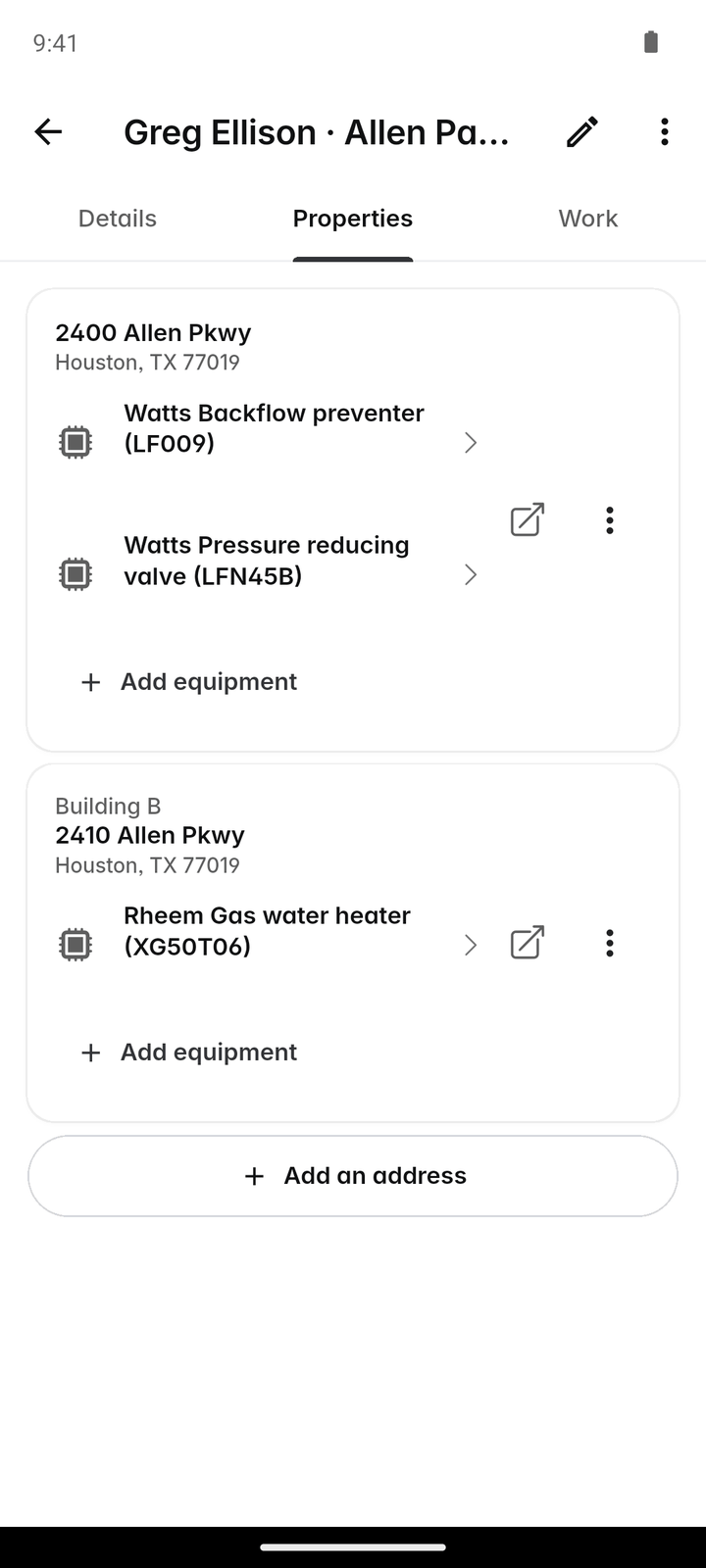
One client, many addresses
A landlord with six rentals is one client with six properties, each with its own pin on the map and its own history. Quotes, jobs and visits each name the property they are for, so the crew drives to the right house and the invoice says which one the work was at.
The right person gets the email
Add several contacts to a client, such as a tenant, a property manager or a spouse, each with their own email and phone, and choose who receives quotes and invoices.
The history travels with them
Requests, quotes, jobs, invoices, payments, files and conversations all hang off the client. Open the record and everything you have done for them is there, in date order, whoever on the team did it.
How it works
Add or bring in clients
Tap + → Client, make a lead a client, or import your existing customers from QuickBooks export files or a CSV. Search by name, phone, email or address.
Add their properties
On the Properties tab, tap "Add an address". Use "Move pin" if the map puts it in the wrong place, so directions and the day’s map are right.
Add the people
Add contacts with their own phone and email, and mark who gets quotes and who gets invoices. The tenant can hear about the visit while the owner gets the bill.
Work from the record
From the client’s menu start a request, quote, job or invoice, send a statement of their account, or archive them when the work ends.
Keep the equipment up to date
Add the units at each address from the property, a job or a visit. Tick what you serviced on each visit, and the next service date moves on by itself.
In more detail
Equipment at each property
Keep the units at an address: type, brand, model, serial number, filter size, install date, warranty end and how often it is serviced. Tick what you serviced on a visit and the next service date counts on from it. More → Equipment lists warranties ending and service due in the next 90 days, and Activity reminds you 30 days before a warranty ends and 14 days before service is due.
Merge duplicates without losing anything
When the same person was added twice, open one record and choose "Merge into…". You see what will move, addresses, requests, quotes, jobs, invoices, conversations and files, before you confirm. Merging is for owners and admins. Duplicates usually come from the same person booking online with one email and calling with another; merging puts their history back in one place, so a statement or a quote follow-up does not miss half their account.
Tags, custom fields and statements
Tag clients to group them, by hand or by an automation, for example "slow payer" after a late invoice. Custom fields hold whatever your trade needs on every record, such as gate codes or pet names. A statement of the account can be emailed from the client’s menu, listing what they have been invoiced and paid, which settles most “what do I owe you” questions in one email.
What clients see
Settings → Client hub sets what a client sees through the links you send: all their quotes and invoices, the scheduled time, whether they can ask for changes or refer a friend, and the main button. They need no account or app to use it. The contacts you added get the documents you marked for them, so a property manager can approve a quote while the tenant only hears when you are coming.
What it costs
Included in every plan: Fixerlane $19.99 a month for up to 10 people, Fixerlane Team $39.99 for up to 25, Fixerlane Business $69.99 for up to 50. Every plan starts with a 14-day free trial, and no card is needed to start.
See all plans →Not built yet
Listed here rather than discovered after you sign up:
- A live sync with QuickBooks: import is from export files, and nothing syncs back
Common questions
- Can one client have several addresses?
- Yes. Add as many properties as they have. Each has its own map pin, details, equipment and history, and every quote, job and visit says which property it is for.
- Can I add more than one contact to a client?
- Yes. Add the tenant, property manager, spouse or accounts person with their own email and phone, and choose who receives quotes and who receives invoices.
- How do I bring my clients over from another system?
- Import customers, invoices and estimates from QuickBooks Online or Desktop export files, or your clients from a CSV. It is a one-time import, not a live connection.
- What happens if I add the same client twice?
- Merge them. Pick the record to keep and everything from the other moves across. Owners and admins can merge.
- Can my crew see client details?
- Crew members see what they need for their own visits, such as the address and instructions. Money is kept to owners and admins, and roles decide the rest.
- Does Fixerlane remind me when equipment is due for service?
- Yes. Activity reminds you 14 days before service is due and 30 days before a warranty ends, and More → Equipment lists what is coming up in the next 90 days.
- Can I export my client list?
- Yes. Every list exports to CSV, and Account & plan → "Export all my data" sends the whole business as an Excel workbook, CSV files or JSON, free with or without a plan.
- Does a removed equipment unit lose its history?
- No. Removing a unit keeps its service history on the property, so past visits still show what was serviced.
Works well with
Messages and inbox
Message clients from the app or the web, with photos and voice notes. They reply from an email link, no app or account needed, and email from your own mailbox sits next to the client it belongs to.
Email campaigns
Write one email, pick which of your clients get it, and send. Every email carries an unsubscribe link that works on its own, and you see who opened and clicked.
Service agreements
Set the visits once and Fixerlane keeps booking them. Set the price once and it bills the client every month, quarter or year, by emailed invoice or their saved card.
Lead inbox
Every enquiry lands in one list, with what the customer needs, where they are and how to answer them. Receiving leads and replying to them is free, with or without a plan.
The same tools in the Fixerlane app
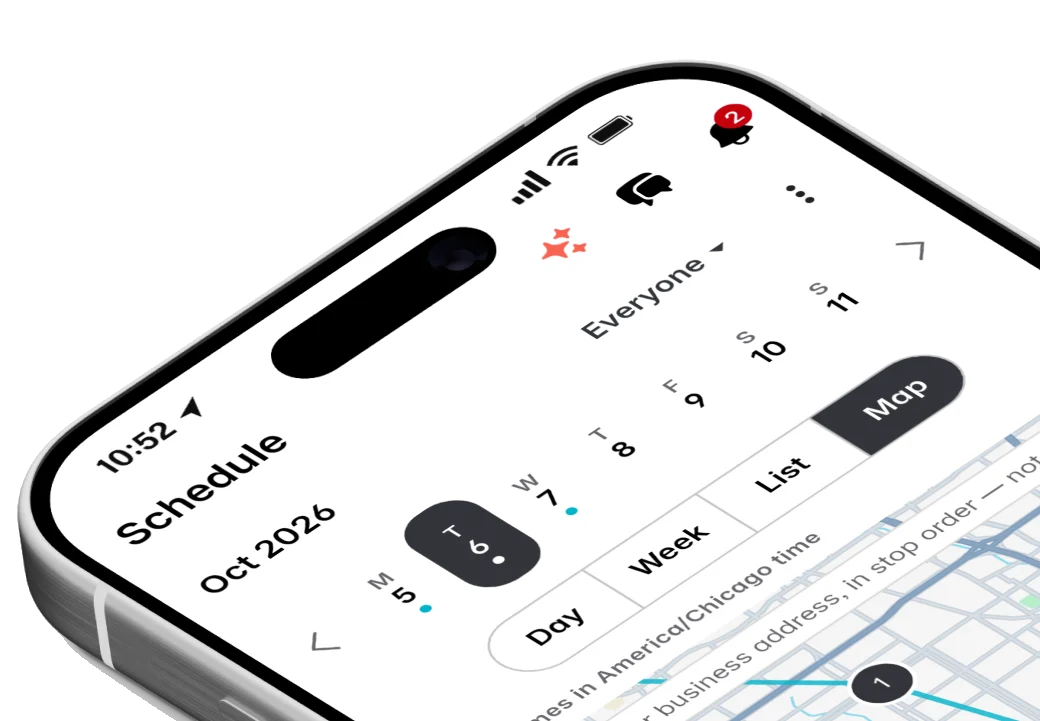
Fixerlane runs in the browser and on Android and iPhone, with the same tools in each. The app keeps your day on the phone, so it keeps working without signal.


Try it on your own work
Start the 14-day trial with no card, or claim your free listing first and add the tools later.
All features →